Getting Started
In this Better Pages Release 13 guide, you will make a small Product Launch Hub: a private Confluence draft with a Find your way section linking readers to the plan, launch status, and support. You will save and reopen the draft before deciding whether to publish it. Nothing in the preview or staged canvas publishes the page automatically.
Before you begin
Section titled “Before you begin”You need a Confluence Cloud site with Better Pages installed, an active Marketplace evaluation or subscription, and permission to create and edit a page in your chosen space. You do not need administrator access to use a published Brand Kit or Brand Style. If the app has not been installed, ask a Confluence administrator to install it from the Marketplace and review the Atlassian permission screens.
The screenshots below show synthetic content on a licensed Better Pages Release 13 development installation. Your site’s spaces, user names, and branding will differ.
Select a screenshot to open its full-size image, especially on a small screen.
1. Start a private page from Home
Section titled “1. Start a private page from Home”- In Confluence, open Apps → Better Pages home. In Build, select Start with section patterns. You can choose Browse templates instead if you want an existing structure.
- Choose a destination space where you can create pages and enter a unique
title, such as
Product Launch Hub. - Select Create blank draft for Composer. Home creates one private draft; it does not publish it.
- Select Continue designing to open that same draft in Composer.
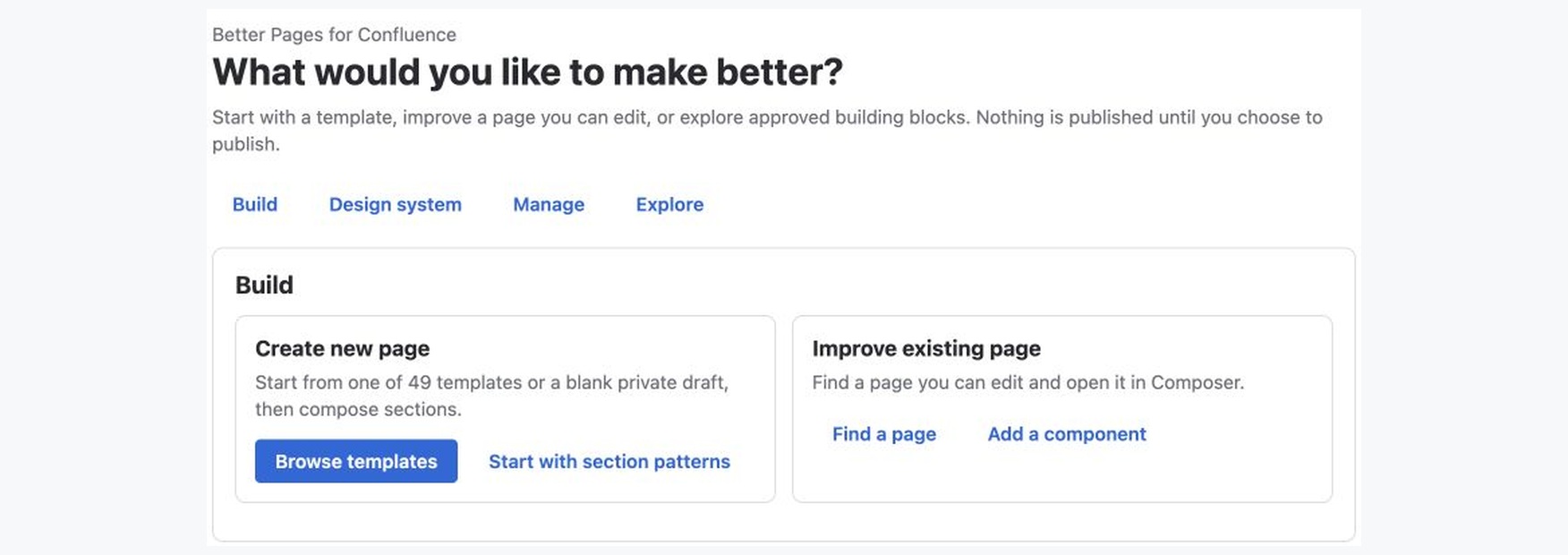
The Build choices on Better Pages Home.
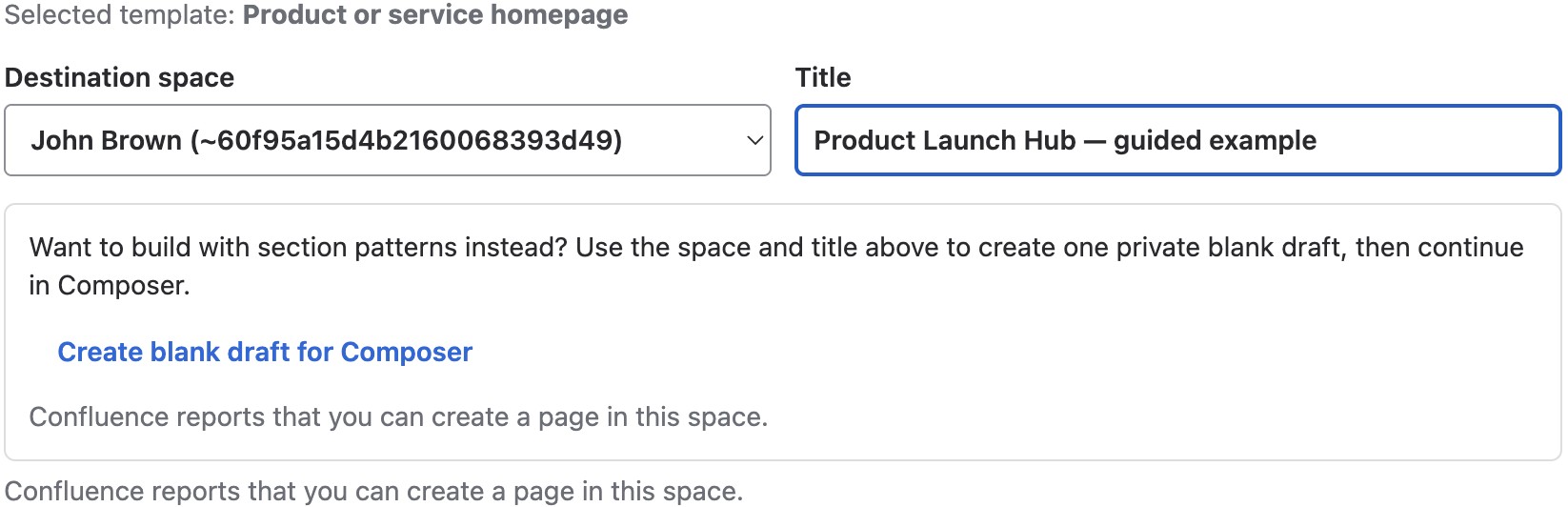
Choose the right space and title before creating a draft. The screenshot also shows the optional template path.
2. Compose and review a section
Section titled “2. Compose and review a section”- In Better Pages Composer, choose Compose a section.
- Select the Find your way Section Pattern. Replace its sample heading, introduction, and destinations with your own facts and real links. For a launch hub, use cards such as Plan, Launch, and Support.
- If your administrator has published a suitable Brand Kit or Brand Style, select it for the supported role. This is optional; the section works without a custom style.
- Select Preview section. Check the words, links, and appearance, then select Add to canvas.
- In Review canvas, use Edit section, Duplicate, Remove, or the move controls if you need to change the staged result. Select Apply to this page as the output.
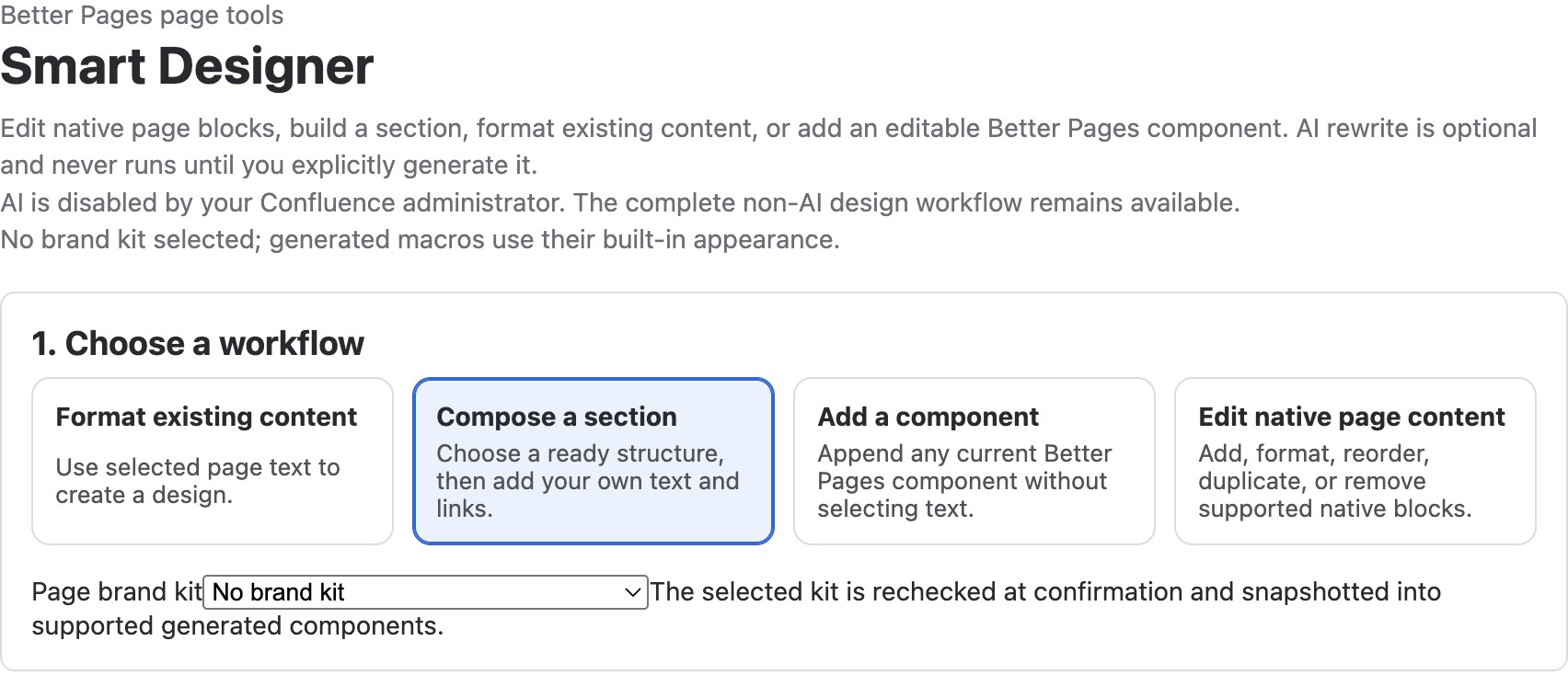
Composer also supports formatting existing content, adding one component, and editing supported native blocks. AI is disabled on this example site; the non-AI workflow remains available.
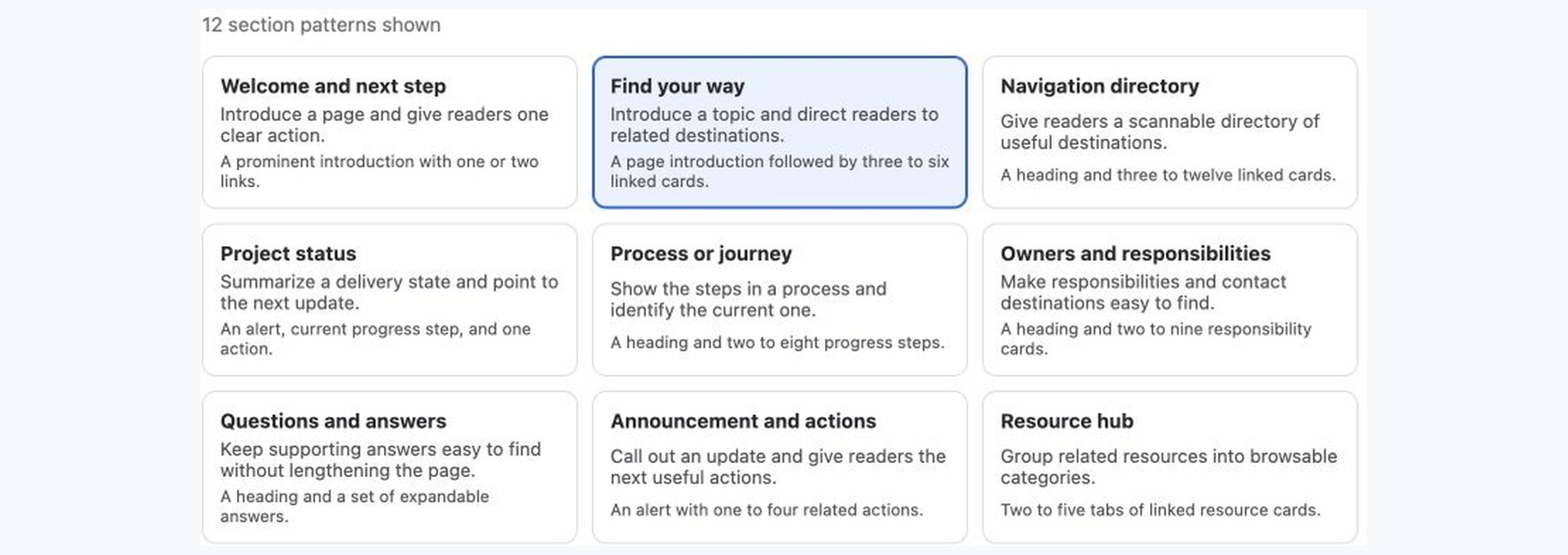
Choose a pattern by the question your readers need answered. See the Section Patterns guide for all 12.
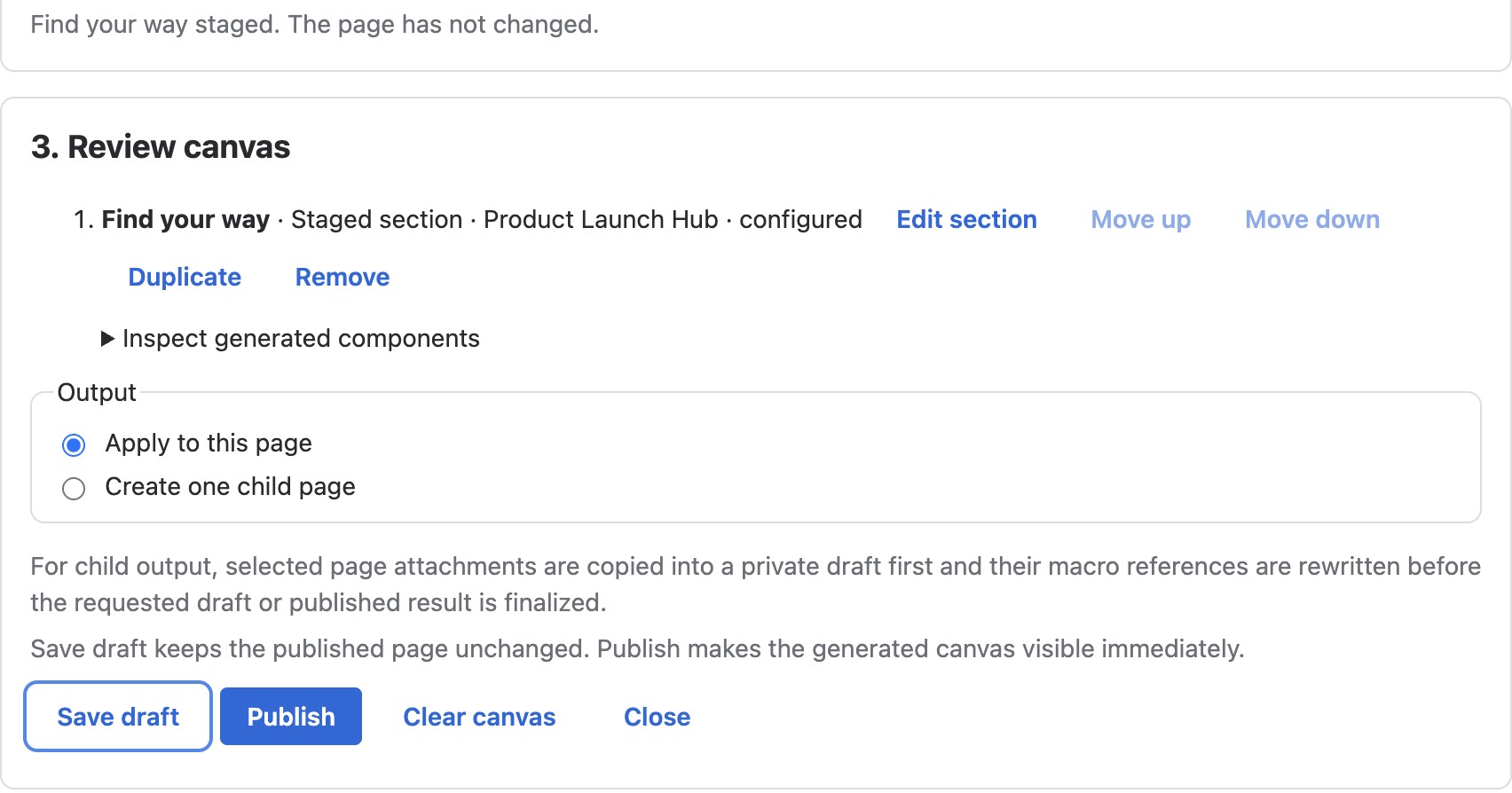
Staging is a review step. The page has not changed until you choose Save draft or Publish.
3. Save, reopen, and publish when ready
Section titled “3. Save, reopen, and publish when ready”- Select Save draft. Wait for the saved-draft confirmation before leaving Composer.
- Close Composer and open the private draft in Confluence. Close the editor, then reopen the draft to confirm the heading and cards are still there.
- Replace any remaining example wording or links. Check the result in the normal Confluence editor. When it is ready for readers, Publish the draft and test its destinations in reader view.
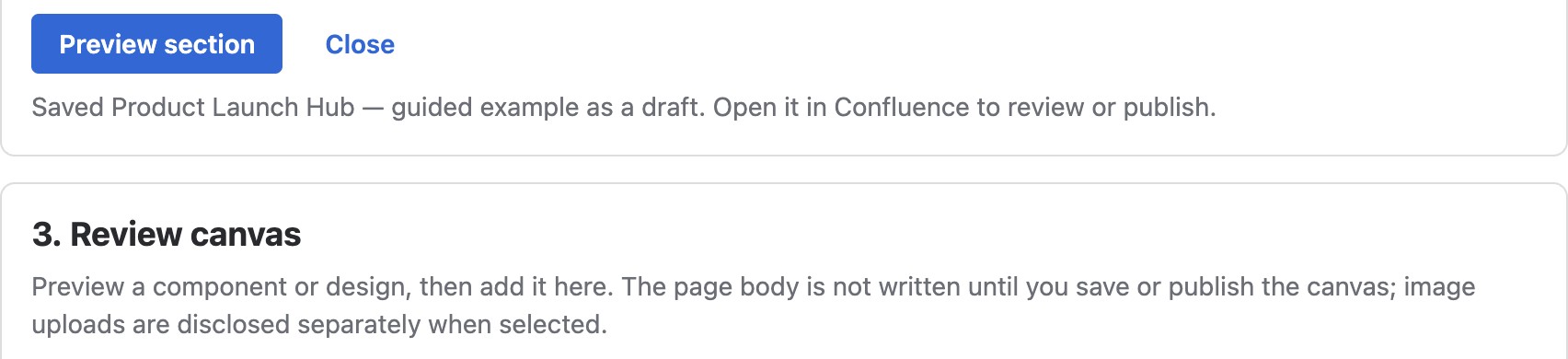
A save confirmation means the staged content was written to the private draft, not published.
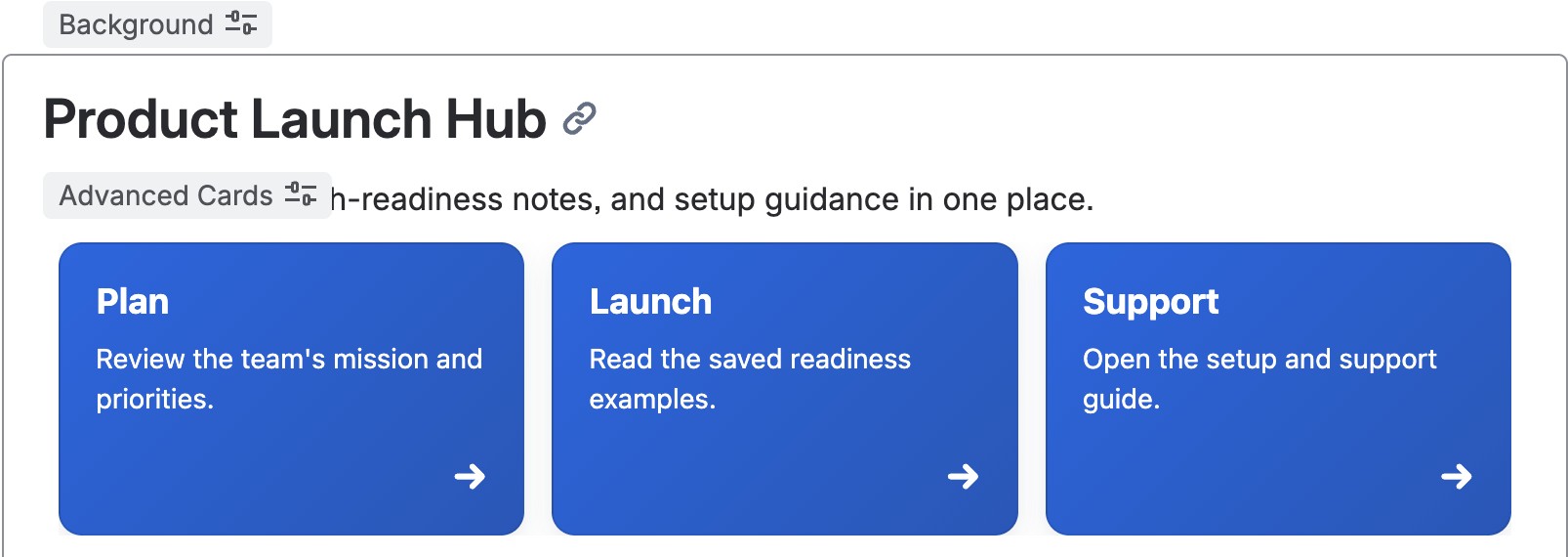
The same draft was closed and reopened after saving. Its heading and three cards remain editable; Background and Advanced Cards labels identify the generated macros in the editor.
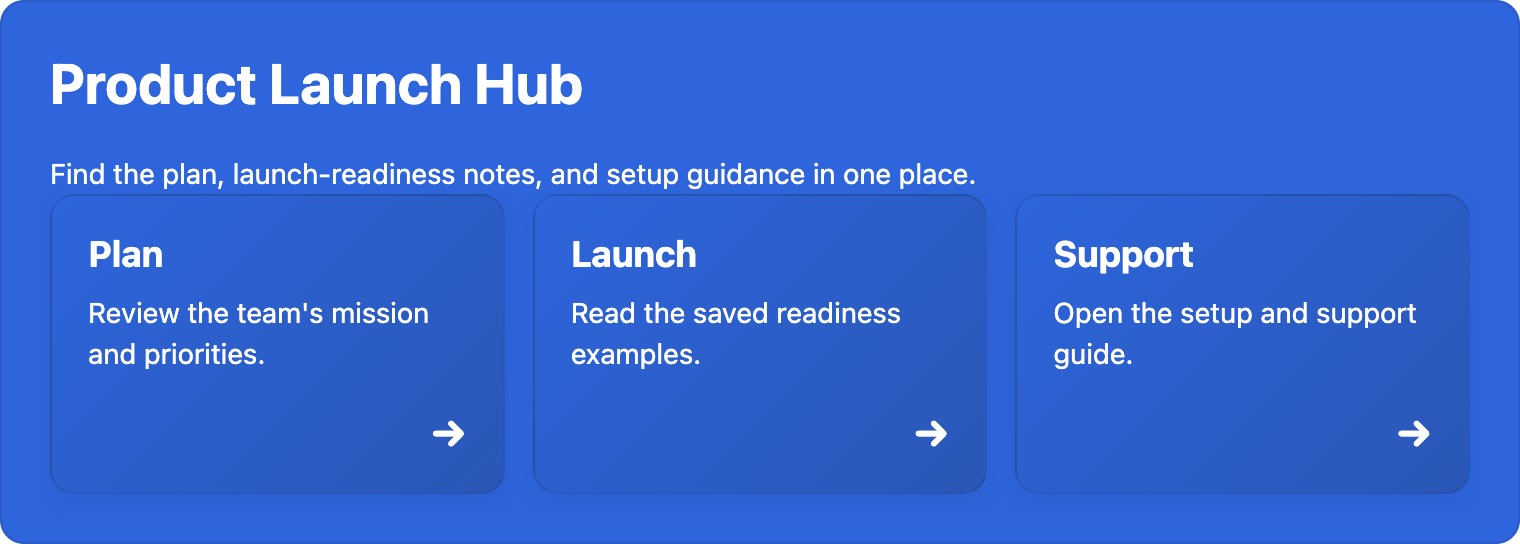
After an explicit Publish in Confluence, the same example appears in reader view. Its Plan card was checked and opens the synthetic team home. Replace all example destinations with pages your audience can access.
If you choose a template instead, Preview template creates nothing; Use template creates a private single-page draft. Its Continue designing action leads into Composer, while Edit in Confluence lets you finish in the normal editor. Blog templates continue in the editor. A Delivery journey is different: confirming it creates published linked pages, so review the destination and hierarchy first. See Templates and Better Pages Home for these paths.
After your first page
Section titled “After your first page”The generated section remains editable in Confluence. Edit its normal text blocks and reopen supported Better Pages macro configuration when you need to maintain cards or visual settings. See Composer for the staged-writing lifecycle and Brand Kits and Brand Styles for shared appearance choices.
If you only need one element on an existing page, use the normal Confluence
editor: choose Edit, type /better pages or search Insert elements,
select a component, configure it, save its configuration, then publish or
update the page. The Macro Catalog keeps the guides for all 19
components.
To adapt this first-page flow to a specific outcome, see the Page Recipes, especially the Product launch page recipe.