Background
Use Better Pages Background to give a section a clear visual boundary without turning its content into an image. The macro body remains normal Confluence content and stays readable, editable, and searchable.
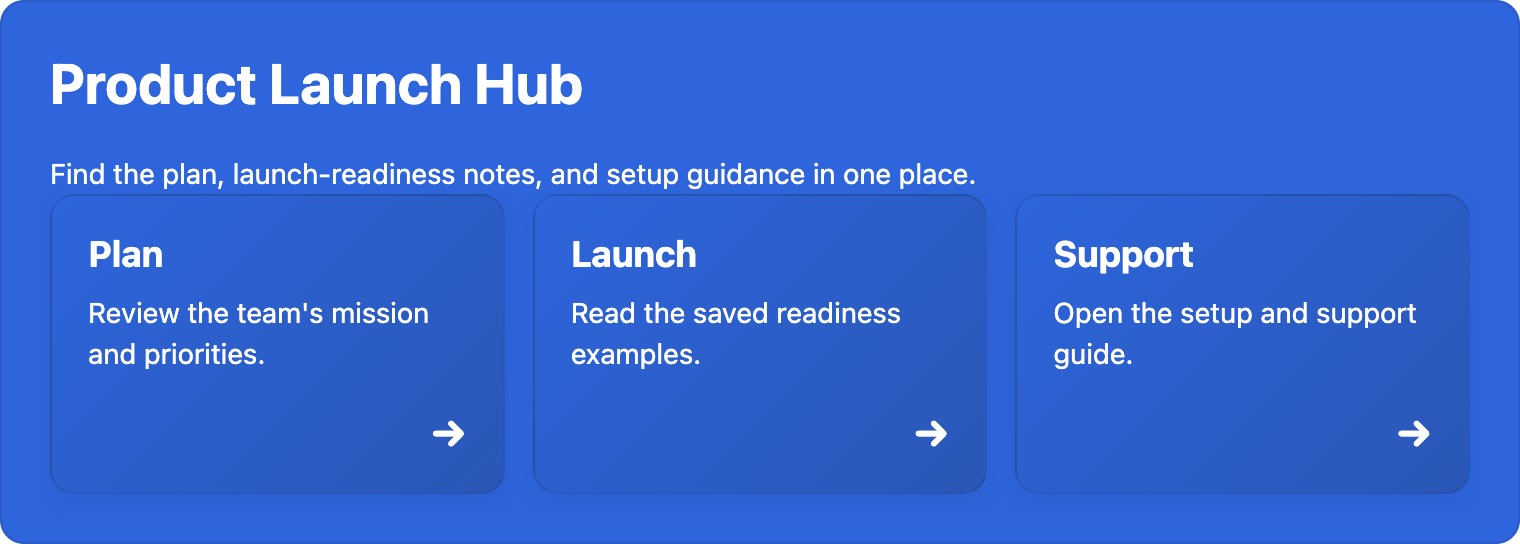
Release 13 example: the Background provides a shared surface for editable rich content and the Plan, Launch, and Support navigation cards.
Add a Background
Section titled “Add a Background”- Insert Better Pages Background and enter an accessible section label.
- Choose a surface color and let Better Pages select readable text, or set the text color manually.
- Set side spacing, minimum height, corner radius, and content alignment.
- Optionally add built-in artwork, a Brand Kit asset, an upload, a page attachment, or a licensed stock image.
- Save the macro, add rich content to its body, and publish the page.
Image and layout controls
Section titled “Image and layout controls”Images can use natural size, contain, or cover. Choose a focal position and image opacity; add a surface color behind the image to preserve contrast. The section can wrap its content or use a medium, large, or custom minimum height.
Example
Section titled “Example”Create a product hero with a cover image, centered content, generous side spacing, a short heading, one sentence, and a Button. Keep the image decorative unless it communicates information not present in the text.
Good practice
Section titled “Good practice”- Use an accessible label that describes the section’s purpose.
- Check text contrast over both the brightest and darkest parts of an image.
- Avoid fixed tall sections for short content, especially on phones.
- Publish and review the real page at desktop and narrow widths.