JSM Customer Portal Templates
JSM customer portal templates let an authenticated customer select a governed template while submitting a request. Jira creates the request normally, then the app safely fills eligible empty root fields and creates the configured hierarchy in a durable background run.
Before you begin
Section titled “Before you begin”You need Jira administrator or service-project administrator access to the request type, plus permission to edit the template. The request type’s Jira work type must match the template root work type.
Anonymous portal submission is not supported. Customers who authenticate to the portal without a Jira or JSM product license are supported.
Configure the template
Section titled “Configure the template”- Open Apps → Issue Templates & Hierarchy Builder.
- Open the template, select Details, then Edit template.
- In Review & settings, select Edit settings.
- Under Availability, select Add availability rule.
- Select the service Project and exact JSM request type in the same rule, then keep Rule enabled selected.
- Confirm that every required variable has a default.
- Save the template.
A portal run cannot pause after request submission to ask another question, so a required variable without a default prevents the template from being offered.
The request-type rule is portal-specific. It does not remove the template from matching Jira Library, Create, or Apply contexts.
Add the field to the request form
Section titled “Add the field to the request form”- Open the Jira Service Management project settings.
- Open Request types and choose the configured request type.
- Add the app’s Issue template field to the customer request form.
- Preview the portal form as an authenticated customer.
The selector shows No template plus only templates that match the exact service project, request type, and root work type. It shows friendly names and does not expose internal template IDs.
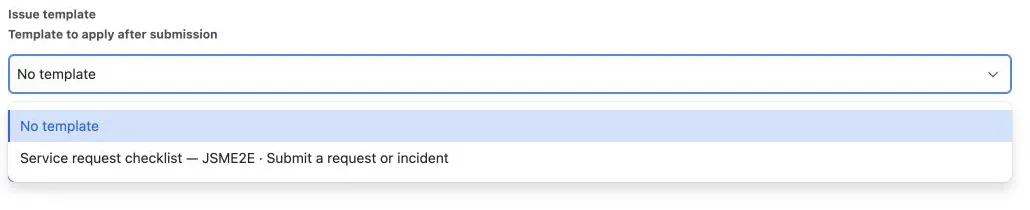
The image is cropped to the selector of an authenticated, portal-only test customer. It does not show an agent-side Jira form.
What happens after submission
Section titled “What happens after submission”- No template creates the customer request and no app run.
- Selecting a template stores the template selection on the Jira request; the portal and Jira UI display the template’s friendly name.
- Customer-entered Summary, Description, and other populated root fields are preserved.
- The automatic policy fills supported empty root values only.
- Required variable defaults are resolved automatically.
- Selected hierarchy work is queued after the request exists.
- Template comments and attachments are not copied automatically.
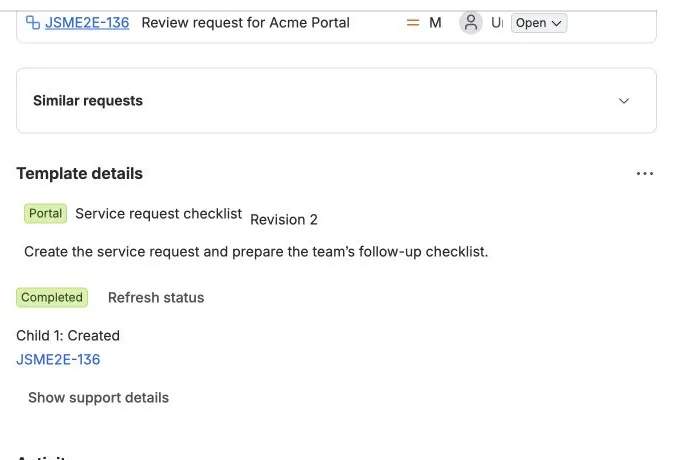
Open the request in Jira and expand Template details to see the template revision, run status, created child work, and a safe retry action when work is partial or failed. Completed nodes are not created again during retry.
Verify the setup
Section titled “Verify the setup”Use a non-production request type before wider rollout:
- Submit No template and confirm no Template details relation appears.
- Submit the matching template with a customer-entered Summary and Description.
- Confirm both values remain unchanged.
- Confirm the expected child work completes.
- Confirm another request type does not show the template.
Troubleshooting
Section titled “Troubleshooting”The Issue template field does not appear
Section titled “The Issue template field does not appear”Confirm the field is added to the exact JSM request form. The availability rule alone does not place the field on the form.
The field appears but the template does not
Section titled “The field appears but the template does not”Check that one enabled availability rule contains the exact service project and JSM request type, the request type uses the same Jira root work type as the template, and every required variable has a usable default.
The selector fails closed for mismatched or unavailable context.
The request was created but no hierarchy appeared
Section titled “The request was created but no hierarchy appeared”Open Template details in Jira. No template intentionally creates no run. For a selected template, inspect the Pending, Partial, Failed, or Completed status and correct the actionable Jira configuration or permission problem before retrying unfinished work.
For more symptoms, see Troubleshooting and Support.