Create diagrams from text
Text-defined diagrams turn readable source into a published diagram. This guide applies to the published Forge app, Cloud version 3.0.0.
Choose the source language
Section titled “Choose the source language”| Macro | Source language | Good fit |
|---|---|---|
| Mermaid UML Diagram | Mermaid | Flowcharts, sequence diagrams, state diagrams, Gantt charts, and other common diagram types |
| Graphviz Diagram | DOT | Dependency graphs and relationship maps with calculated layouts |
| PlantUML Diagram | PlantUML | UML and other diagrams supported by PlantUML syntax |
The languages are not interchangeable. Insert the macro that matches the source you intend to maintain.
Create and publish a diagram
Section titled “Create and publish a diagram”- Edit a Confluence page.
- Insert Mermaid UML Diagram, Graphviz Diagram, or PlantUML Diagram.
- Enter source for the selected language.
- Review the preview. Fix the first reported syntax error before continuing.
- Choose Save and wait for the editor to return to Confluence.
- Choose Publish for a new page or Update for an existing page.
- Reload the published page and review the complete diagram.
Saving the macro and publishing the Confluence page are separate steps.
Try a Mermaid flowchart
Section titled “Try a Mermaid flowchart”Insert Mermaid UML Diagram and enter:
flowchart LR Request --> Review Review --> ApprovedThe preview should show three nodes connected from left to right. Mermaid also supports samples, configuration, Full view, image export, and manual preview control. See Use Mermaid editor tools.
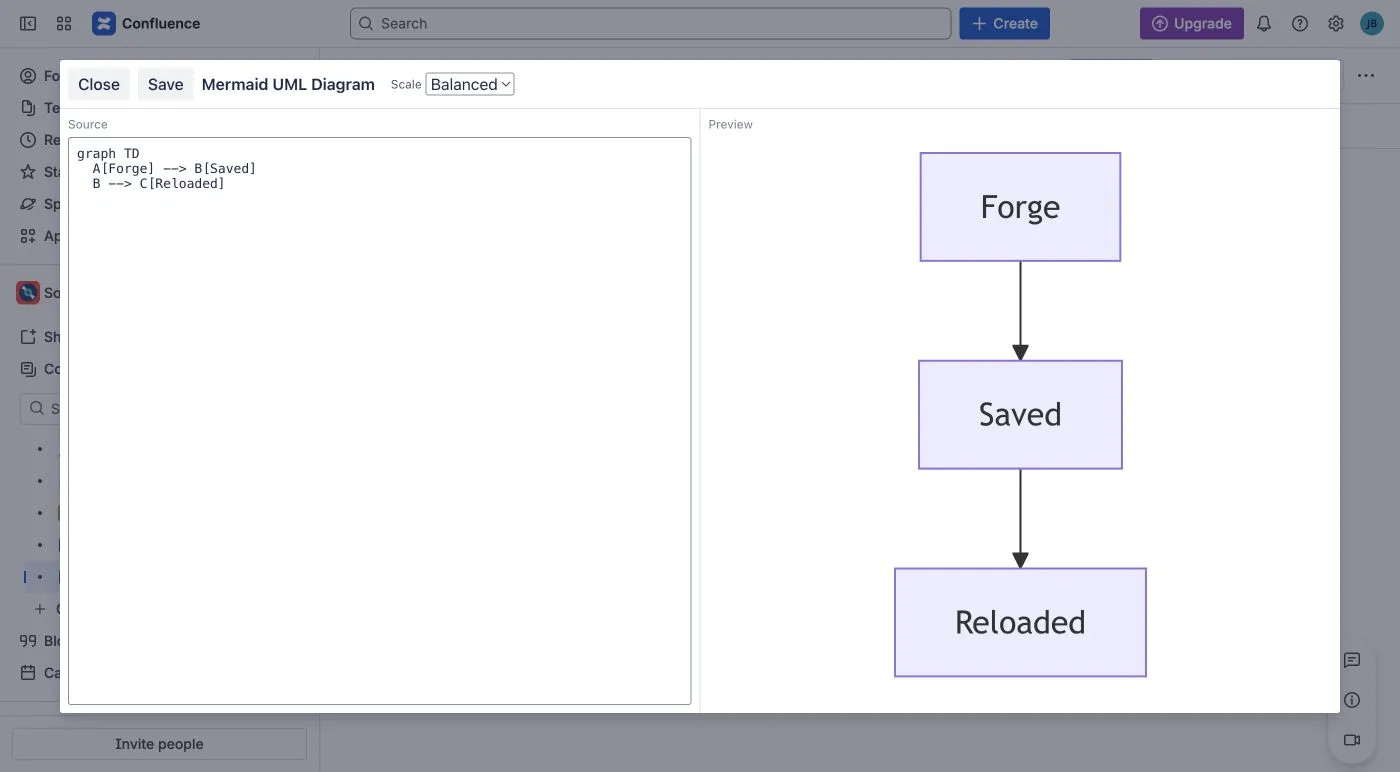
The source and preview appear side by side. The screenshot uses different sample text to show the editor layout.
Try a Graphviz relationship graph
Section titled “Try a Graphviz relationship graph”Insert Graphviz Diagram and enter:
digraph { rankdir=LR; Request -> Review; Review -> Approved;}The preview should show a directed graph laid out from left to right. Use the Graphviz gallery for additional DOT examples.
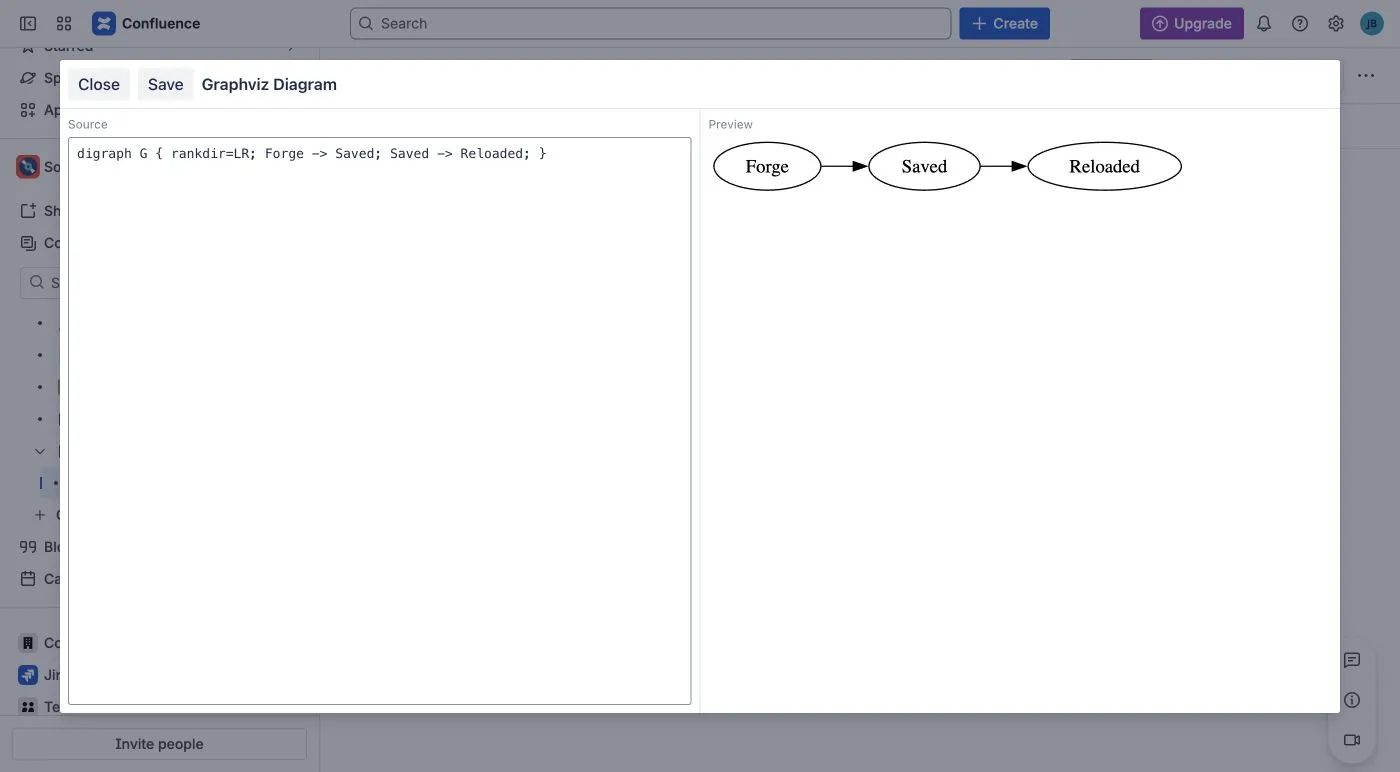
Graphviz calculates the layout from DOT source. The screenshot uses different sample text to show the editor layout.
Try a PlantUML sequence
Section titled “Try a PlantUML sequence”Insert PlantUML Diagram and enter:
@startumlRequester -> Reviewer: SubmitReviewer --> Requester: Approved@endumlThe preview should show two participants and two messages. Use the PlantUML language reference for other diagram types.
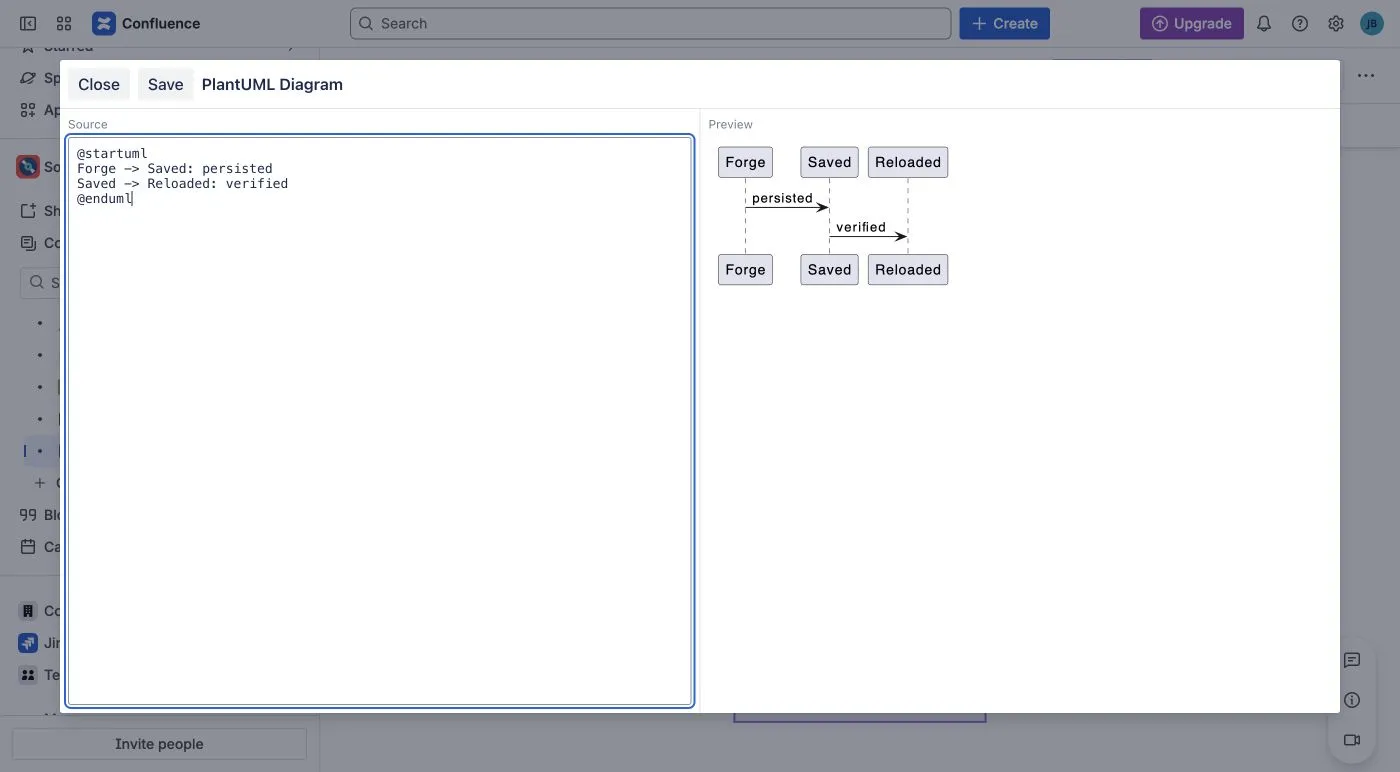
PlantUML renders the source beside the editor. The screenshot uses different sample text to show the editor layout.
Work safely with source
Section titled “Work safely with source”- Keep a copy of source before reducing a failing diagram to a smaller example.
- Do not save while the preview still represents older source.
- Treat arrows as visual relationships. They do not become Confluence links or executable actions automatically.
- Review the published result after every change to configuration or syntax.