Section Patterns
Section Patterns are guided starting points for a complete page section. Use them when readers need an answer or action—such as finding related pages, understanding status, or reviewing a decision—without assembling every block and macro separately. In Better Pages Release 13, the Composer includes 12 patterns.
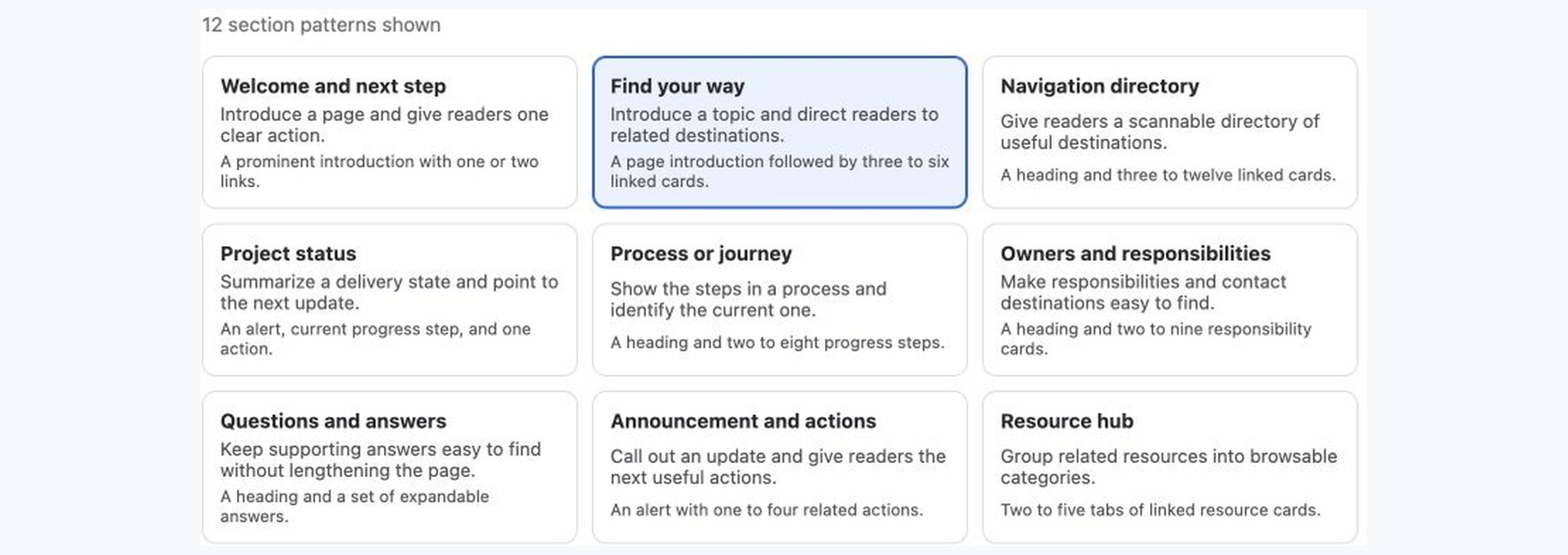
A licensed-development capture of the pattern picker. Search by outcome or name, or filter by category; your page content and destinations will differ.
Choose a pattern by reader need
Section titled “Choose a pattern by reader need”| Reader needs to… | Pattern |
|---|---|
| Understand the page and take one clear action | Welcome and next step |
| Find a few related destinations | Find your way |
| Scan a larger collection of links | Navigation directory |
| See current delivery state and the next update | Project status |
| Follow stages in a process | Process or journey |
| Find the right owner or contact | Owners and responsibilities |
| Expand supporting answers | Questions and answers |
| Notice an update and act on it | Announcement and actions |
| Browse grouped resources | Resource hub |
| Review measurements or evidence | Metrics and evidence |
| Understand a decision and next steps | Decision and next steps |
| Read detailed technical guidance | Technical reference |
For a first project home, Find your way is a useful choice: write one short introduction and cards for the plan, current launch status, and support. Use real Confluence or safe external destinations rather than leaving example links in the published page.
Build and review a section
Section titled “Build and review a section”- Open Composer for a private draft or a page you can edit, then choose Compose a section.
- Search or filter the catalog. Select a pattern to read its description and inspect its fields.
- Replace the sample text and destinations with your own content. Some patterns have bounded lists or required fields; resolve validation messages before continuing.
- If published Brand Styles are available, use the semantic default or choose another published style for a supported role. This affects appearance, not the section’s purpose.
- Select Preview section. Check the wording, links, and generated components, then Add to canvas.
- Use Edit section, Duplicate, Remove, or the move controls in Review canvas. Confirm the output page, then choose Save draft or Publish when ready.
The canvas is a proposal: previewing and staging do not write to Confluence. Patterns generate normal Confluence content and supported Better Pages macros, not a locked wrapper. After writing, you can edit the native blocks and reopen supported macros in the normal Confluence editor. The Macro Catalog explains those individual building blocks. For the full save/reopen flow, follow Getting Started.