Issue Templates & Hierarchy Builder for Jira

Create repeatable Jira work without rebuilding the same issues and subtasks every time.
New to the app? Start here:
- Install the editable starters for your Jira project.
- Select Use template beside Release readiness and enter a version.
- Preview the hierarchy, then select Create issue.
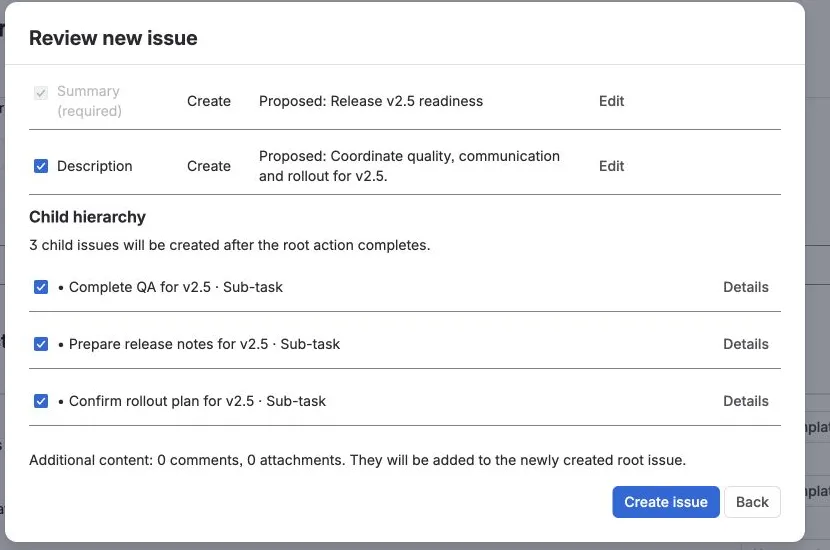
Pick the workflow you need
Section titled “Pick the workflow you need”| I want to… | Use |
|---|---|
| Create new work from a saved process | Create |
| Add standard fields or follow-up work to an existing issue | Apply |
| Copy useful live Jira work once | Recreate |
| Let a JSM customer choose a template | JSM portal templates |
| Run automatically after a Jira transition | Workflow Create |
If you are unsure, start with Create or Apply. Both show a preview before Jira is changed.
What the app protects
Section titled “What the app protects”- Preview first. Review fields and hierarchy before the final action.
- Preserve user input. Apply and automatic flows avoid silent unrelated overwrites.
- Retry safely. Partial hierarchy runs reuse completed work instead of creating duplicates.
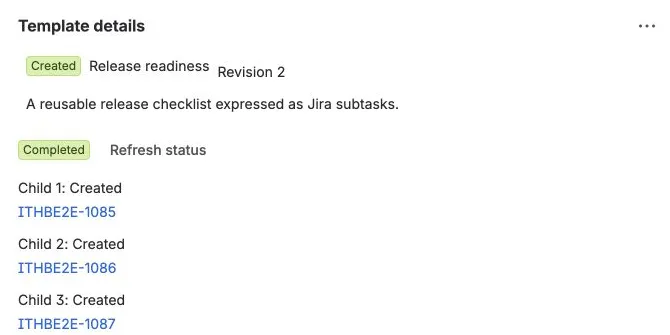
See what teams can build
Section titled “See what teams can build”| Recurring job | Example |
|---|---|
| Release work | Release readiness checklist |
| New people | Employee onboarding |
| Customer delivery | Customer onboarding |
| Existing incidents | Incident follow-up |
| Service requests | JSM request fulfillment |