Interactive Banner
Use Better Pages Interactive Banner for a small set of prominent messages, campaigns, or featured destinations. A banner can contain up to 25 slides.
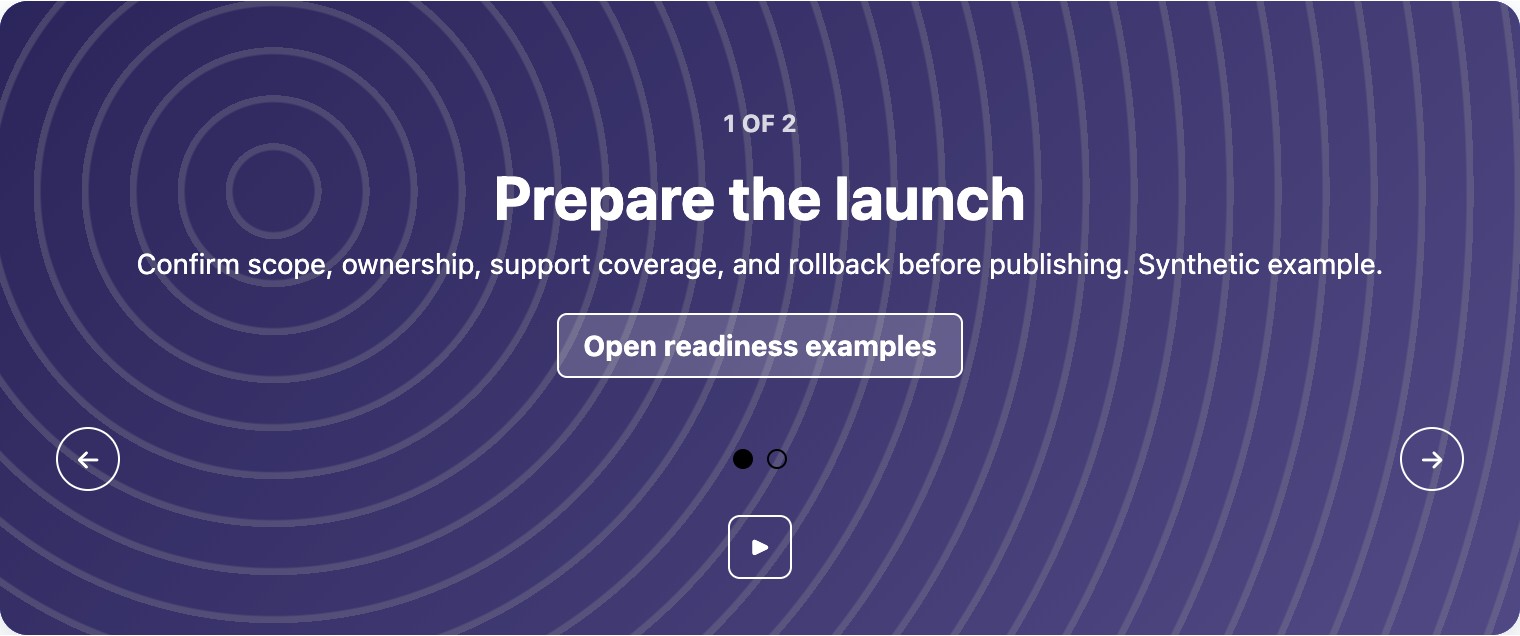
This Release 13 example uses built-in artwork and fictional launch guidance. Auto-scroll was paused for the capture; the play control resumes it. Both Prepare the launch and Support the team were selected in the published reader.
Build a banner
Section titled “Build a banner”- Insert Better Pages Interactive Banner and enter an accessible label.
- Add, copy, remove, and reorder slides in the slide editor.
- For each slide, choose whether to show its title, body, and button.
- Add built-in artwork, a Brand Kit image, a verified upload, a page attachment, or licensed stock artwork.
- Configure fit, position, overlay, and opacity.
- Set the button destination and optional new-tab behavior.
- Optionally enable auto-scroll from 3 to 30 seconds, then publish.
Reader interaction
Section titled “Reader interaction”Readers can use previous, next, and direct slide controls. Keyboard users can move among slide selectors with Arrow keys, Home, and End. Auto-scroll can be paused and does not remove manual navigation.
If an administrator enables AI in macros, an author may use AI Quick Start for a slide. The submitted goal and prompt go to an Atlassian-hosted Forge LLM. The Linked content goal can also send a bounded excerpt from an accessible Confluence page; external web pages are not fetched.
Good practice
Section titled “Good practice”- Prefer one strong slide; add more only when each has equal audience value.
- Keep titles and calls to action visible over every image crop.
- Do not rely on auto-scroll for required information.
- Verify controls, links, attribution, pause behavior, and narrow layout.