Getting Started
Create one Jira root issue and one or more child work items from a starter template.
You only need to complete three steps.
Before you begin
Section titled “Before you begin”You need:
- the app installed with an active evaluation or subscription;
- permission to create Jira issues in the target project;
- a Jira administrator, or a project administrator for the target project, for the one-time starter installation.
1. Install the starters
Section titled “1. Install the starters”- Open Jira settings → Issue Templates & Hierarchy Builder.
- Open Administration → Defaults & integrations.
- Select Install editable starters.
- Enter an issue key from the project you want to use.
- Confirm Install editable starters.
You now have editable examples such as Release readiness. This starter asks
for one value, version, and defines three child work items.
The app selects the project’s subtask Work type for starter children when Jira offers exactly one compatible type. If the project offers several, choose the intended type in Structure before Preview. The FAQ explains this choice.
2. Preview Release readiness
Section titled “2. Preview Release readiness”- Go back to Templates.
- Select Use template beside Release readiness.
- Keep Create new selected and enter a version, for example
v2.5. - Select Preview new issue.
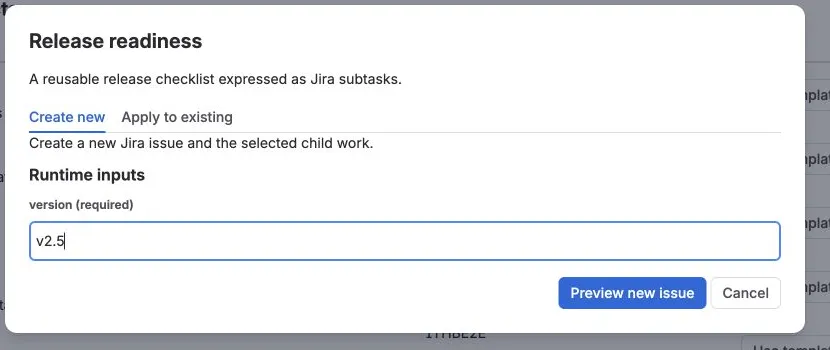
The review resolves the root Summary and Description and shows the three selected subtasks before any Jira work is created.
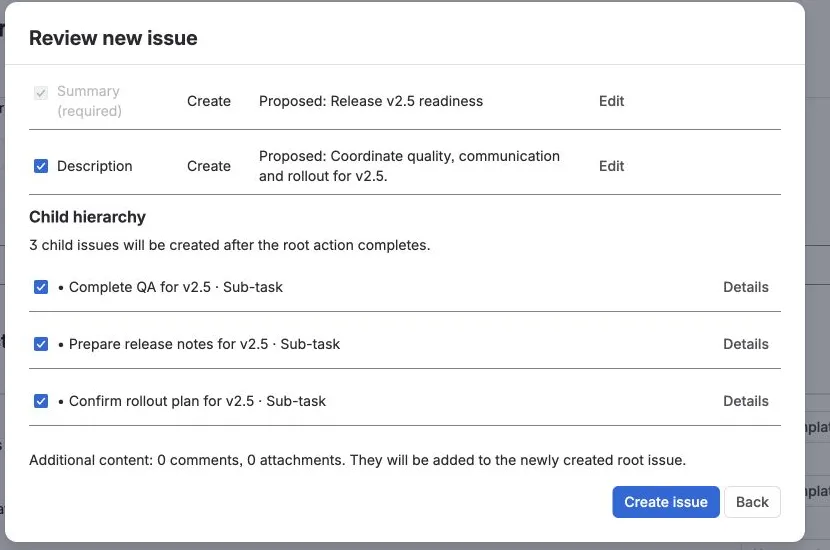
Check only two things:
- the root values look right;
- the child work you want is selected.
Nothing has been created yet.
If Preview reports several compatible Jira subtask work types, open Release readiness → Details → Edit template → Structure. Select the intended Work type and Parent for each affected child, save, and preview again. The screenshots show a starter that was manually mapped for the earlier 4.0.0 release; the current app can select the sole compatible type automatically.
3. Create and verify
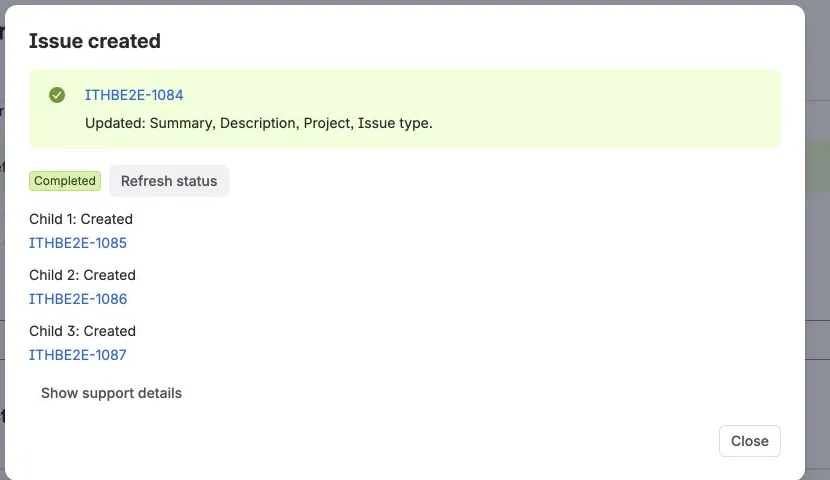
Section titled “3. Create and verify”Select Create issue.
Open the new Jira issue and confirm the selected child work was created.
The run may briefly show Pending or Running while child work is processed. Select Refresh status until the run reaches Completed.
The Jira root has the resolved description and all three subtasks.
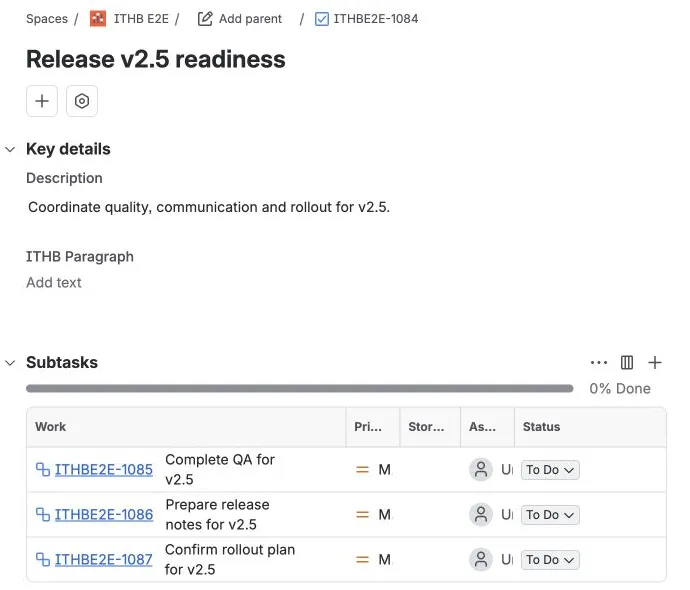
Open Template details on that issue to confirm the template revision and run status.
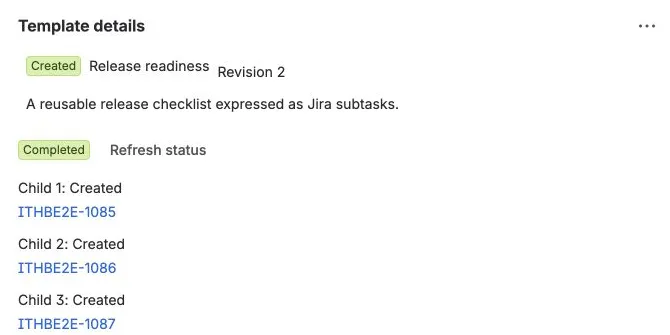
Success looks like this:
- the root issue exists;
- the selected child work exists;
- the run shows Completed.
That’s it — you have completed the core product flow.
What do you want to do next?
Section titled “What do you want to do next?”| Next goal | Guide |
|---|---|
| See how other teams could use the app | Explore Use Cases |
| Change the starter or build your own template | Templates and Supported Fields |
| Apply a template to an existing Jira issue | Create, Apply, and Recreate |
| Ask for values that change every run | Variables and Smart Values |
| Let JSM customers choose templates | JSM Customer Portal Templates |
| Run templates from Jira workflow transitions | Workflow Create |
If the result does not match Preview, open Troubleshooting and Support.