
Working Calendars
Use a calendar when weekends, breaks or holidays should not count toward duration.
Set up working hours
Section titled “Set up working hours”- As a Jira administrator, open Calendars → New calendar, or select an existing calendar.
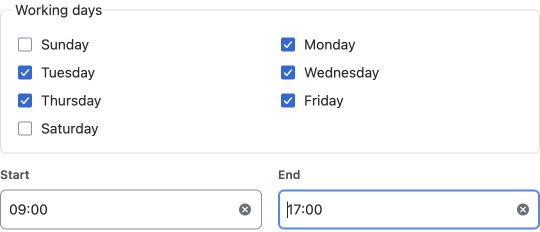
- Set the timezone, working weekdays, start and end times.
- Use Add break and Add excluded date as needed, then choose Save calendar.
- Return to Reports and select it under Time calculation.
See the difference
Section titled “See the difference”For Monday–Friday, 09:00–18:00, with no breaks or excluded dates:
| Issue interval | 24/7 elapsed time | Working time |
|---|---|---|
| Friday 17:00 → Monday 10:00 | 65 hours | 2 hours |
Changing the report calendar recalculates the same history. Overnight shifts are not supported.
Filter issues or measure a period?
Section titled “Filter issues or measure a period?”| Setting | What it controls |
|---|---|
| Project or JQL | Which issues are selected |
| Measure history during | Which part of their history is measured |
| Calendar timezone | When working hours occur |
| Measurement timezone | Date-window boundaries and displayed dates |
For example, JQL on created selects issues created in a period; it does not limit their measured history to that period.
If a saved calendar is unavailable, select another calendar or 24/7 elapsed time, then run again.
Daylight saving time and editing calendars
Working time uses actual elapsed time. If a local boundary falls in a skipped time, it moves forward by the clock change; if it occurs twice, the first occurrence is used. The same rules apply to breaks.
Select an existing calendar to edit and save it. Delete calendar asks for confirmation; saved reports using it will need another calendar. The default calendar cannot be deleted.