
User Guide
Start with one project and a simple report. Your first useful result is a table showing how long each selected issue spent in each workflow status.
Your first report
Section titled “Your first report”-
Open Reports
In Jira, go to Apps → Time in Status → Reports. -
Choose your issues
Under Select issues, choose Basic and a project. Use JQL for an advanced filter. -
Choose your measurement
Select Time in status, Full history and 24/7 elapsed time. -
Run the report
Start with One search page and 25 issues. Select Run report.
Read the result
Section titled “Read the result”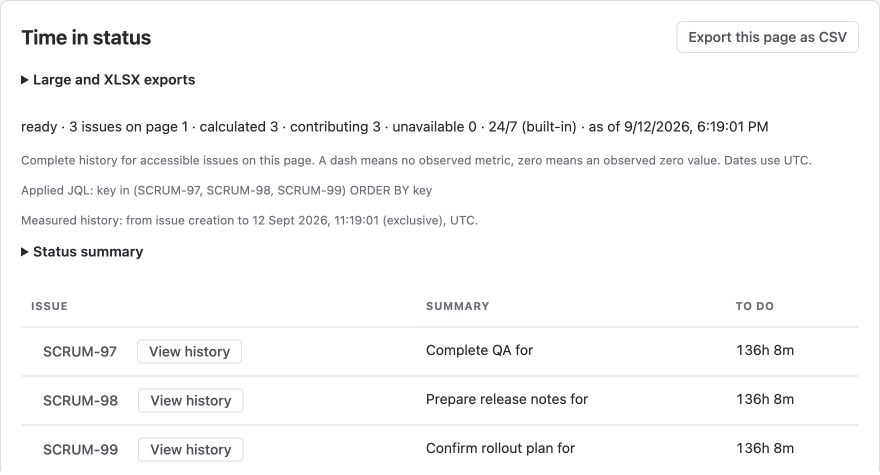
| Look at… | To understand… |
|---|---|
| Status columns | How long each issue spent in that status |
| Scope and completeness | Which issues were included and whether any data is missing |
| Calculation time | When current open visits were measured |
| View history | The visits behind an issue’s result |
A dash means no observed measurement. Zero means a measured zero. Do not treat a partial total as complete.
Choose the right scope and filters
Basic supports project, issue type and current assignee. Use JQL with autocomplete for additional fields or date filters. One search page measures the selected page; All search pages collects matching issues within app limits. The calendar guide explains issue filters versus the measurement window.
Compare and save
Section titled “Compare and save”Open Group results to compare project, current assignee, issue type or component. Add an optional Second dimension for a nested comparison, then choose Total, Mean per contributing issue or Median per contributing issue.
For Time in status, choose how repeated visits contribute inside each issue and status: total of all visits, first visit, latest visit or average visit. The visit rule is applied before issues are grouped.
Choose Save as new to keep a private report configuration. Rerun the saved report to calculate current data. Update saved report changes the configuration; Delete saved report removes it.
To let teammates reuse the configuration, follow Sharing and Dashboards. Shared links contain report settings, not frozen results or export files.
Last-used inputs are remembered separately in your browser and may disappear when browser storage is cleared.