Usage
After installing and starting the trial period, the app will add a custom field name UML text to the Jira instance.
The first step is to add the custom field UML text to issue types and projects.
For classic Jira projects
Section titled “For classic Jira projects”Associate the UML field to issue screens
Section titled “Associate the UML field to issue screens”Navigate to the Custom fields page.
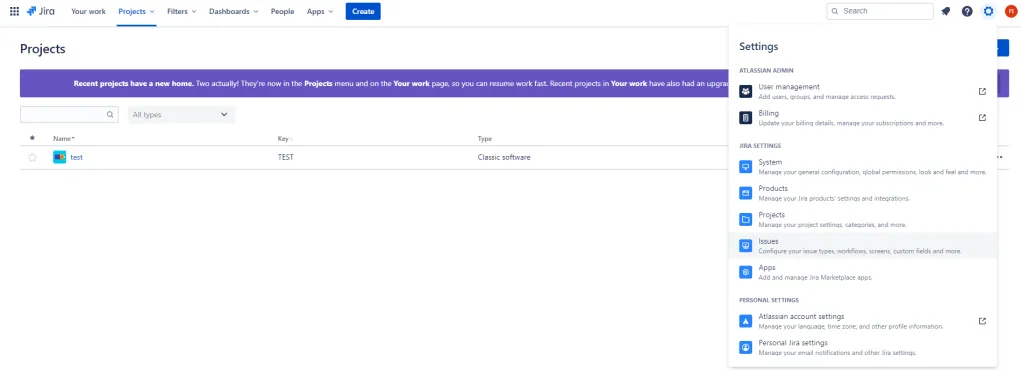
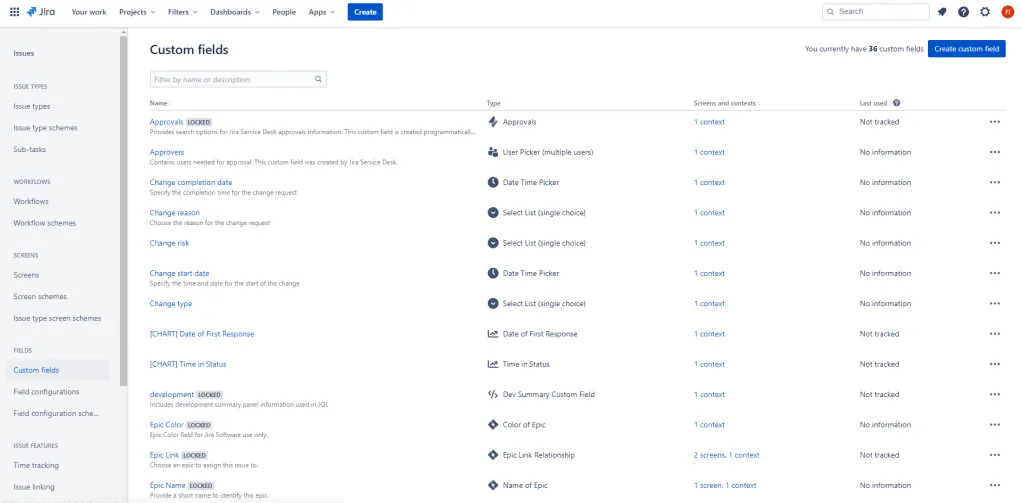
Search for the custom field UML text and add it to screens.


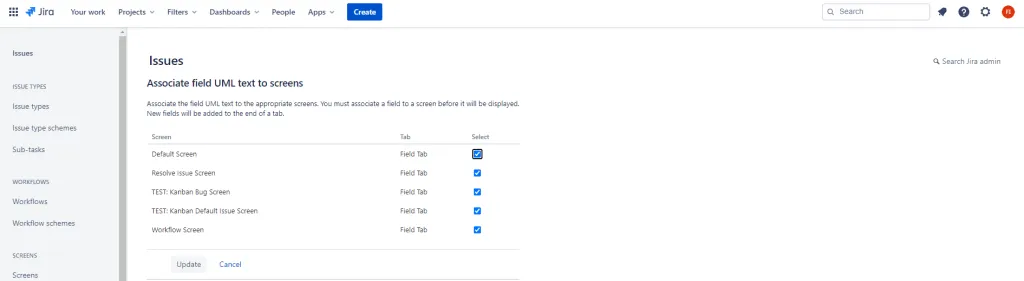
Add the UML panel to the issue screen
Section titled “Add the UML panel to the issue screen”On an issue view, click on the “three dots” icon and select UML Diagrams.
For Next-gen Jira project
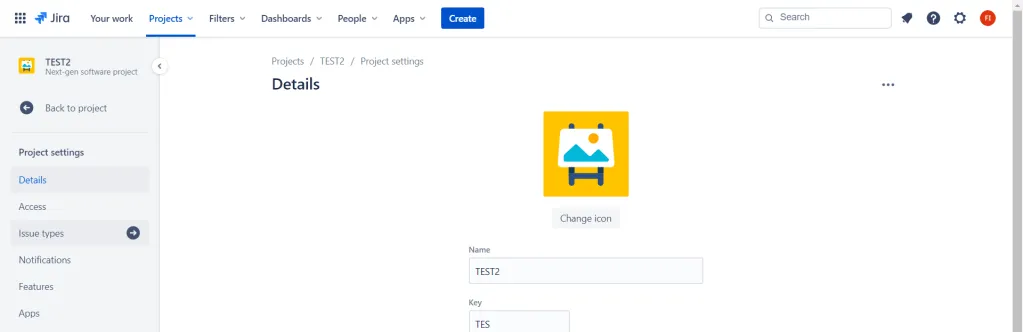
Section titled “For Next-gen Jira project”Click on Project settings on the left sidebar.
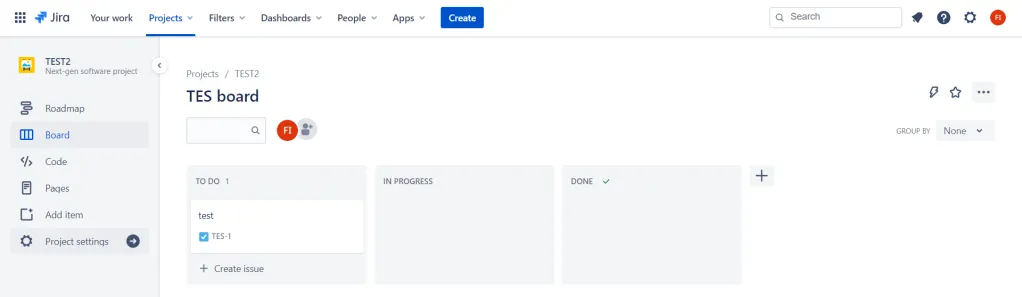
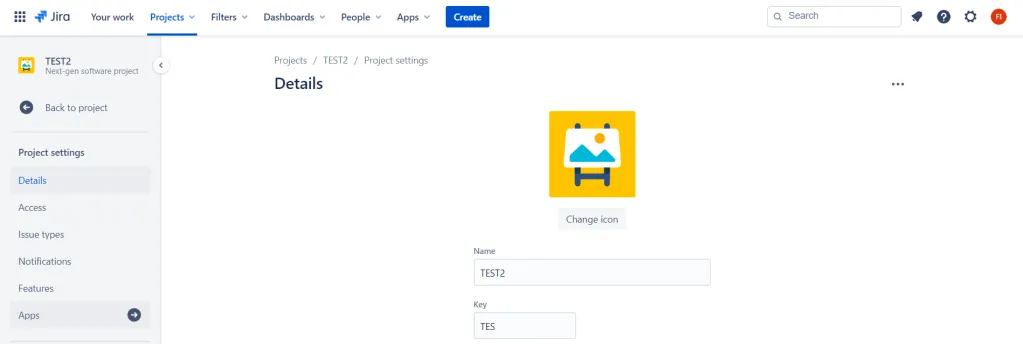
On the Project settings page, click on Apps on the left sidebar.
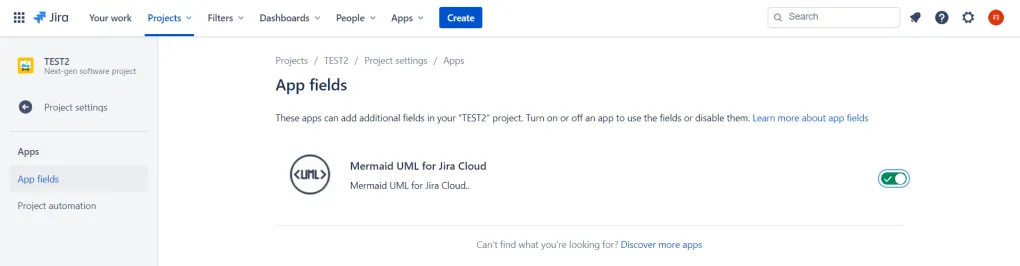
Click on App fields on the left sidebar and enable Mermaid UML for Jira Cloud.
Go back to the Project settings page, click on Issue types on the left sidebar.
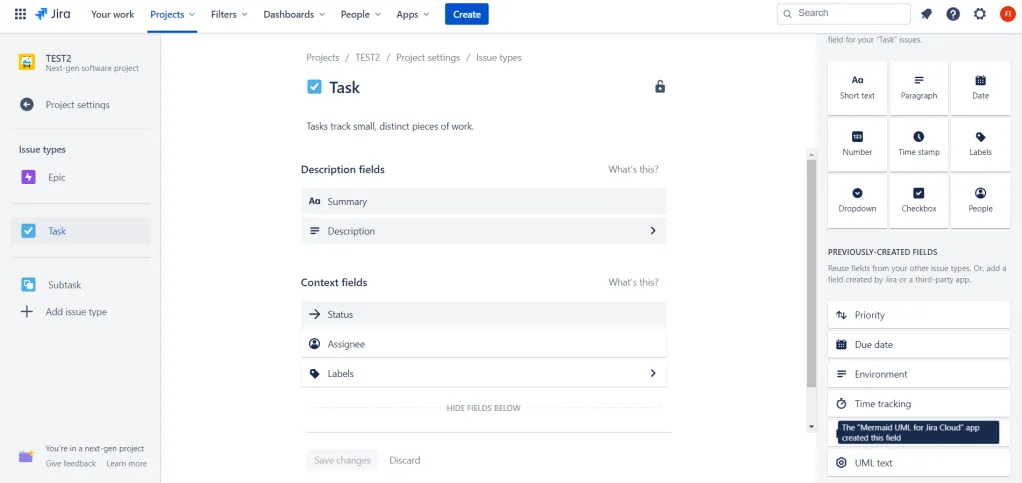
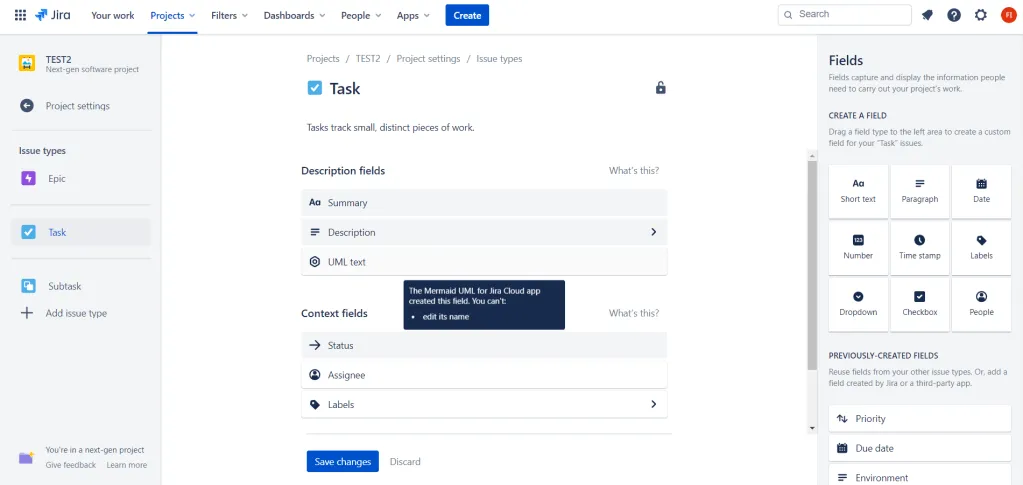
Drag the UML text field from the right sidebar and drop it into the Description fields area.
Add Mermaid UML graphs to an issue
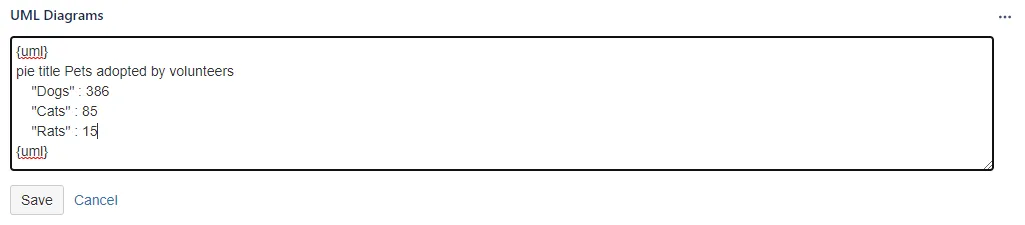
Section titled “Add Mermaid UML graphs to an issue”Click on the Edit button.
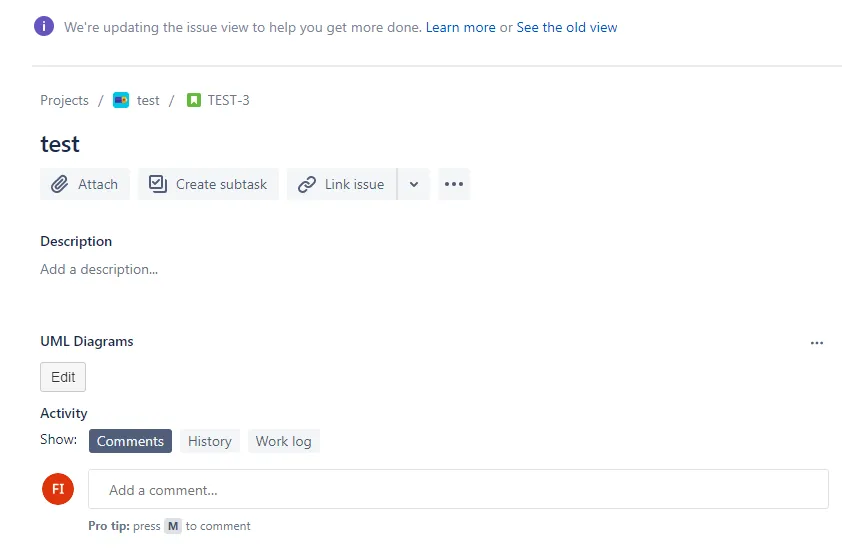
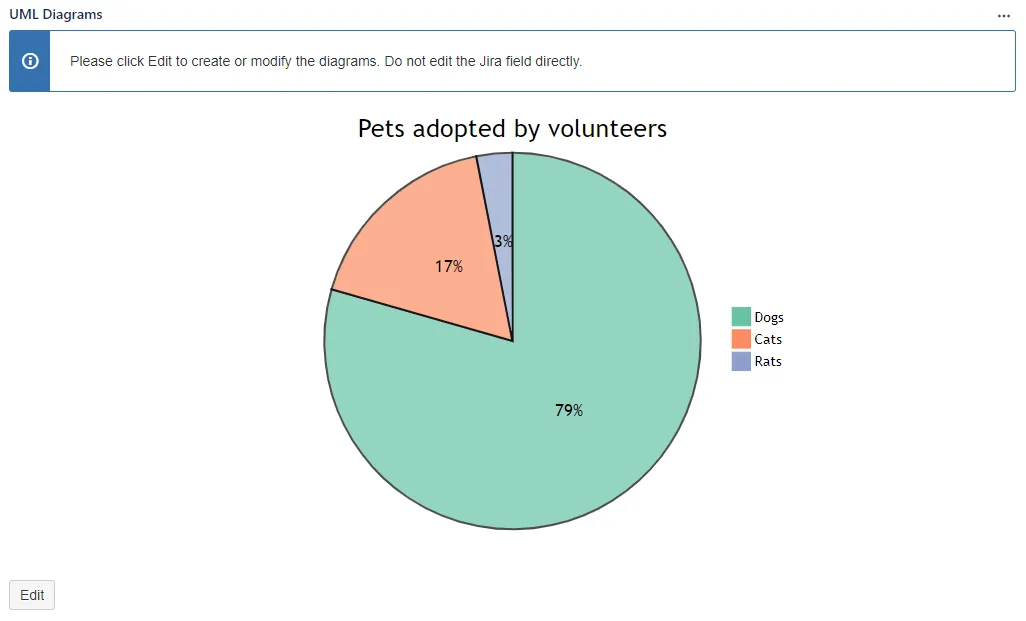
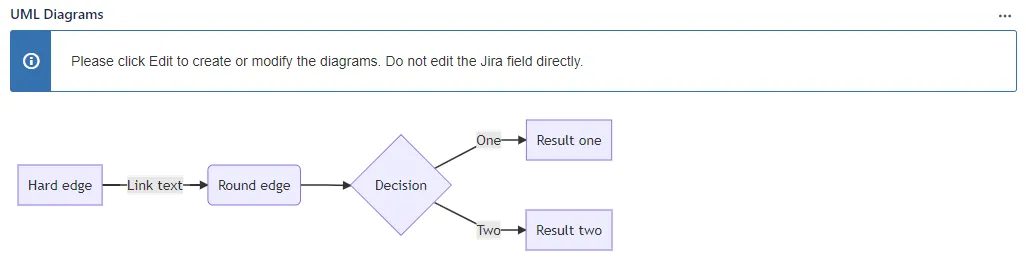
Please do not edit the custom field itself. Whenever you want to add or modify graphs, please use the app’s Edit button.
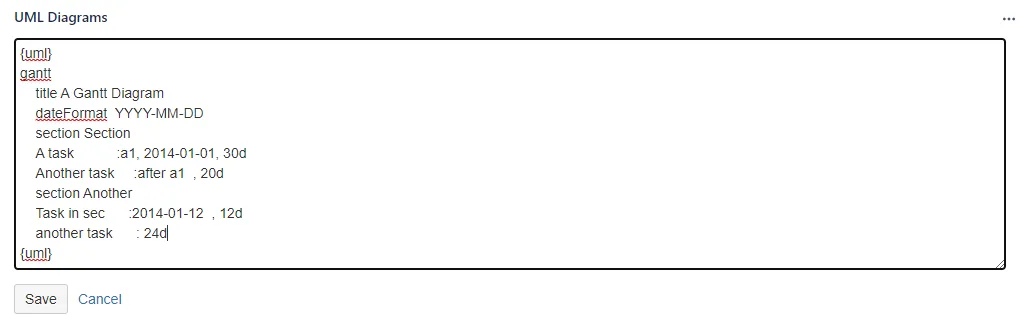
The UML content is wrapped around by {uml}…{uml}. The diagram is defined using Mermaid. Mermaid (https://mermaid-js.github.io/mermaid/#/) allows you to define UML diagrams in plain-text format just like Markdown. For a live editor to draft your diagrams, please try https://mermaidjs.github.io/mermaid-live-editor.
Sample content:
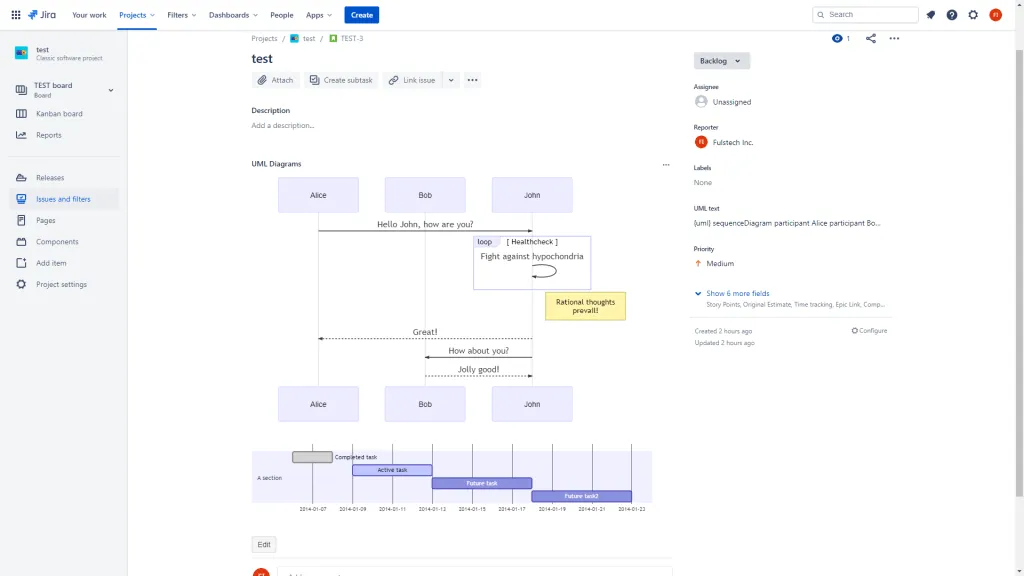
{uml}sequenceDiagram    participant Alice    participant Bob    Alice->>John: Hello John, how are you?    loop Healthcheck        John->>John: Fight against hypochondria    end    Note right of John: Rational thoughts <br/>prevail!    John-->>Alice: Great!    John->>Bob: How about you?    Bob-->>John: Jolly good!{uml}
{uml}ganttdateFormat  YYYY-MM-DDexcludes weekdays 2014-01-10
section A sectionCompleted task            :done,    des1, 2014-01-06,2014-01-08Active task               :active,  des2, 2014-01-09, 3dFuture task               :         des3, after des2, 5dFuture task2               :         des4, after des3, 5d{uml}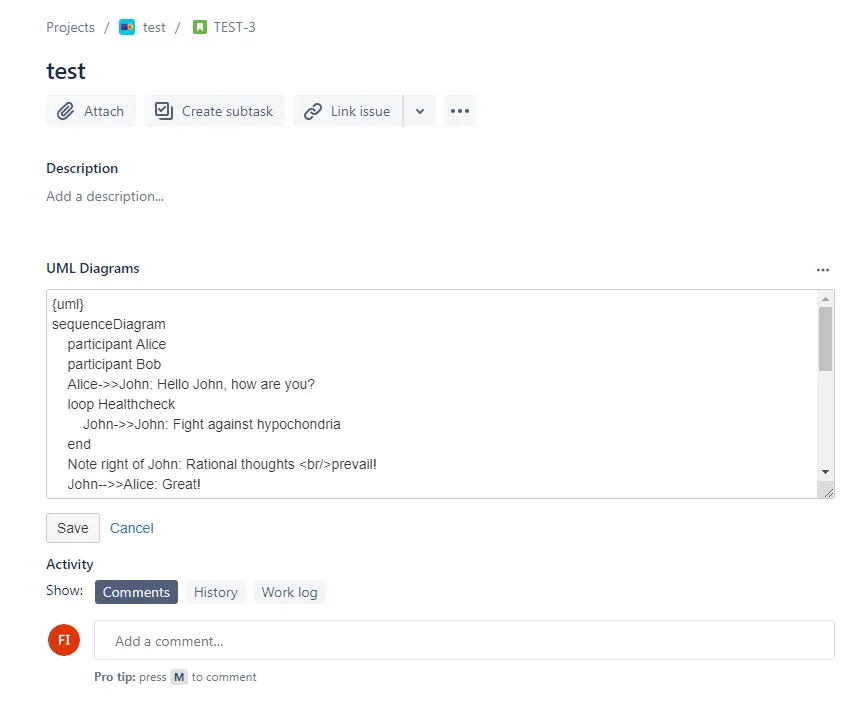
After that, click Save.
Examples
Section titled “Examples”Flowchart
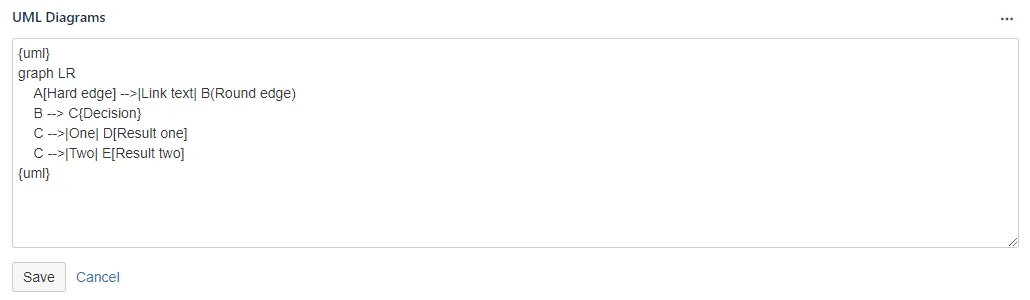
Section titled “Flowchart”Flowcharts can be rendered with Mermaid. See more https://mermaid-js.github.io/mermaid/#/flowchart.
Sequence diagram
Section titled “Sequence diagram”Sequence diagrams can be rendered with Mermaid. See more https://mermaid-js.github.io/mermaid/#/sequenceDiagram.
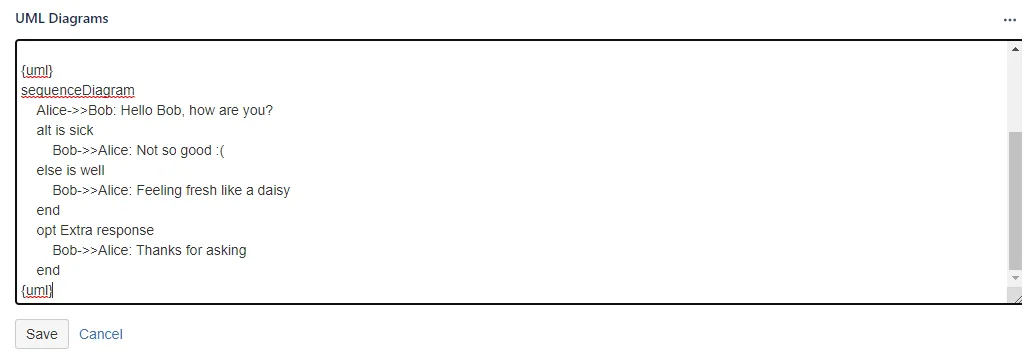
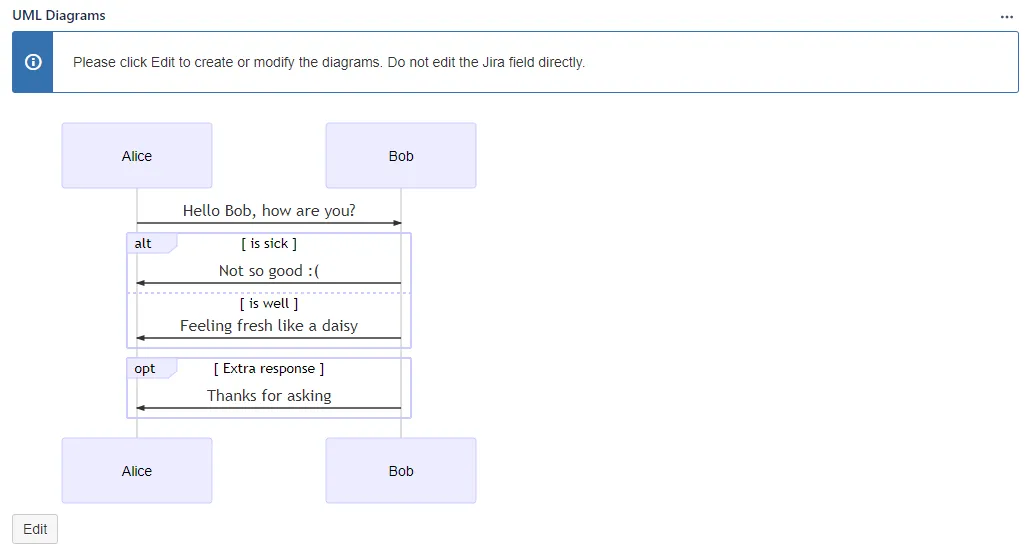
Class diagram
Section titled “Class diagram”Class diagrams can be rendered with Mermaid. See more https://mermaid-js.github.io/mermaid/#/classDiagram.
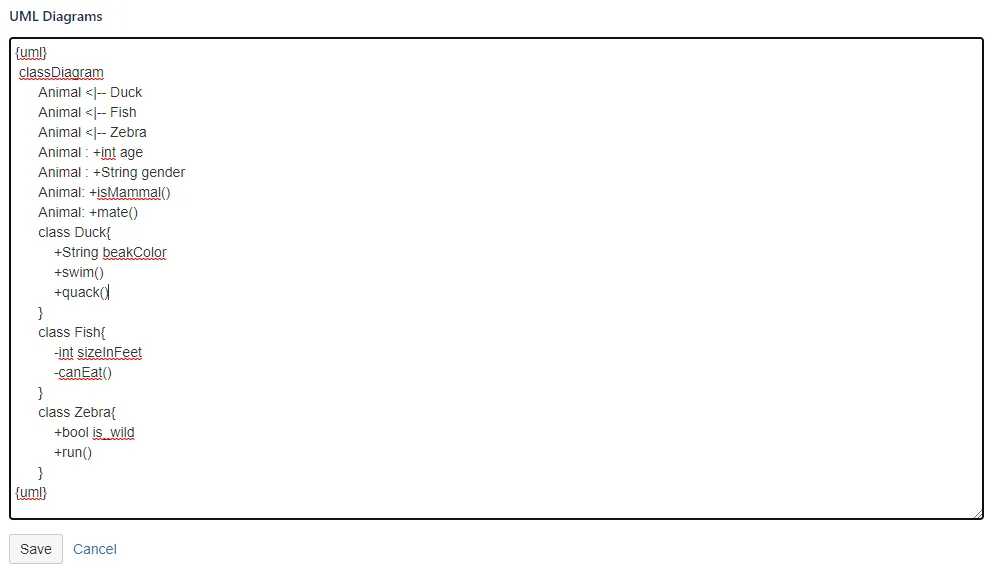
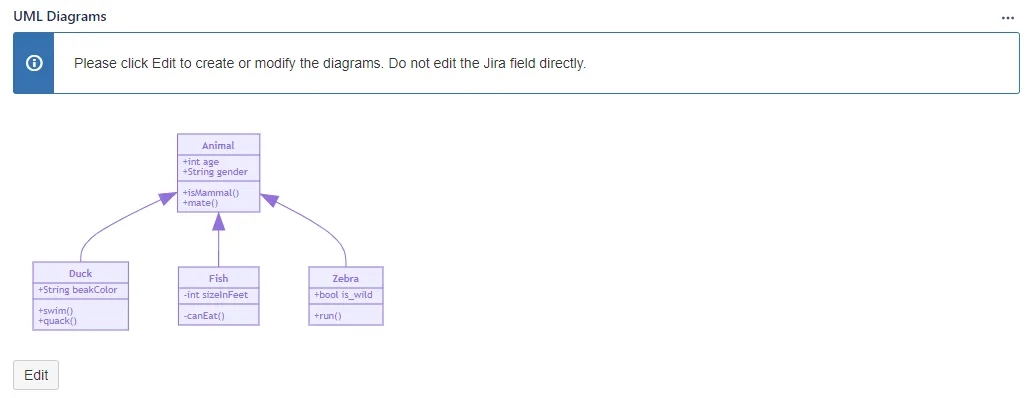
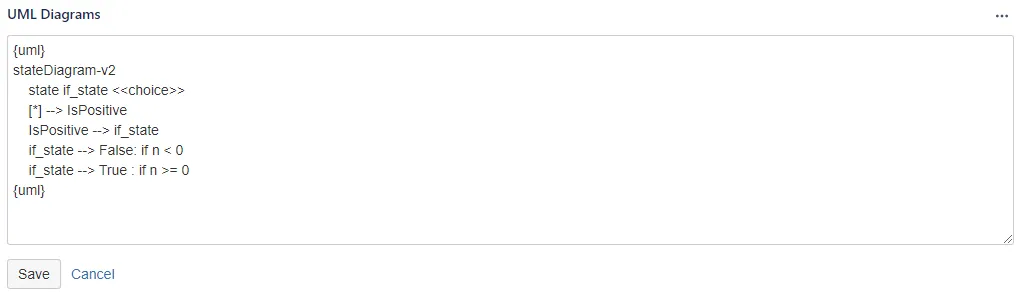
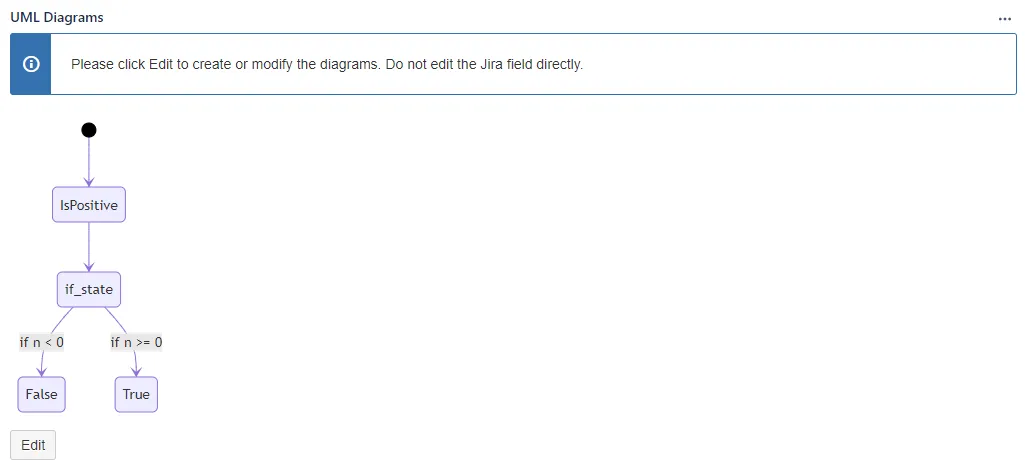
State diagram
Section titled “State diagram”State diagrams can be rendered with Mermaid. See more https://mermaid-js.github.io/mermaid/#/stateDiagram.
User Journey
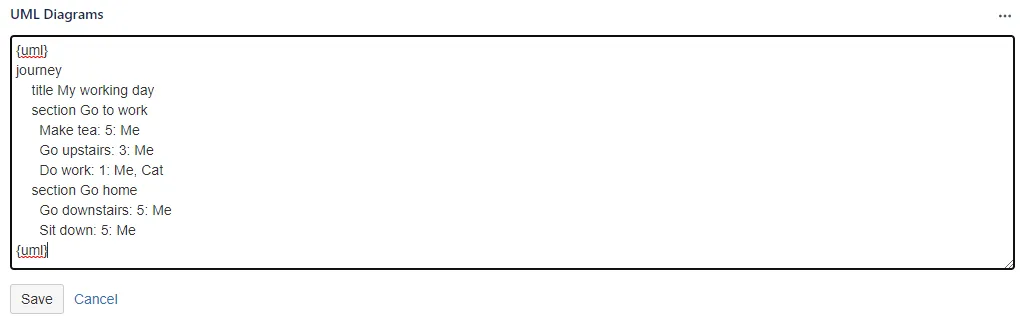
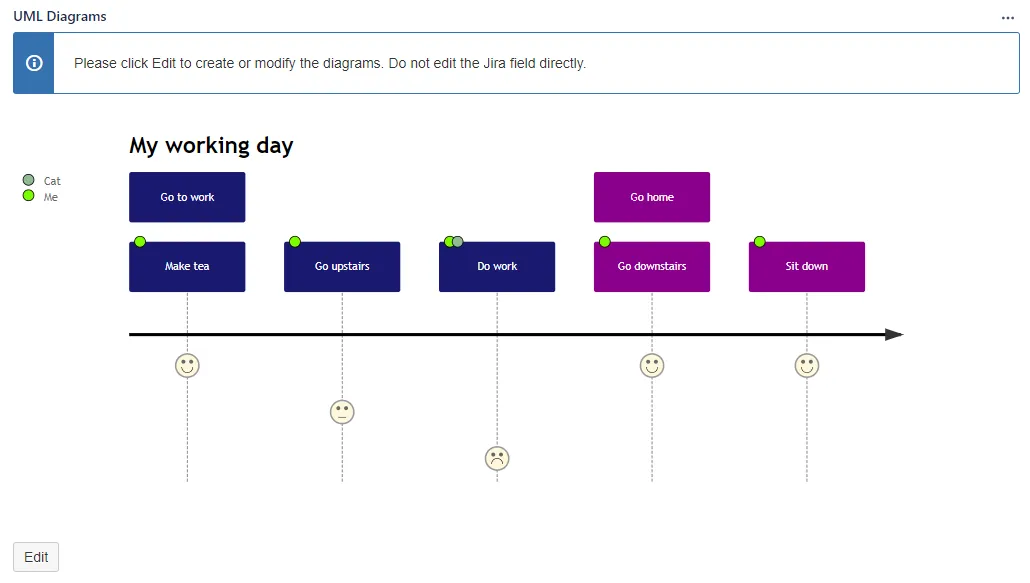
Section titled “User Journey”User Journey can be rendered with Mermaid. See more https://mermaid-js.github.io/mermaid/#/user-journey.
Gantt chart
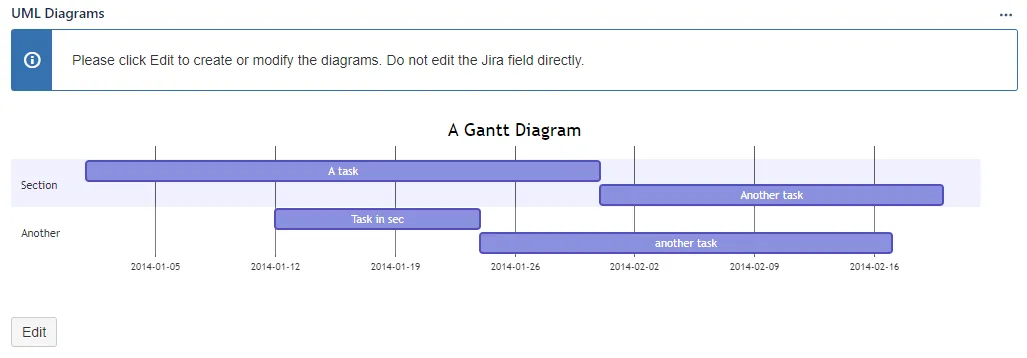
Section titled “Gantt chart”Gantt charts can be rendered with Mermaid. See more https://mermaid-js.github.io/mermaid/#/gantt.
Piechart
Section titled “Piechart”Pie charts can be rendered with Mermaid. See more https://mermaid-js.github.io/mermaid/#/pie.