Build an incident or operations hub
Outcome: Responders and stakeholders can find the current impact, owner, next update, and recovery playbook from one page.
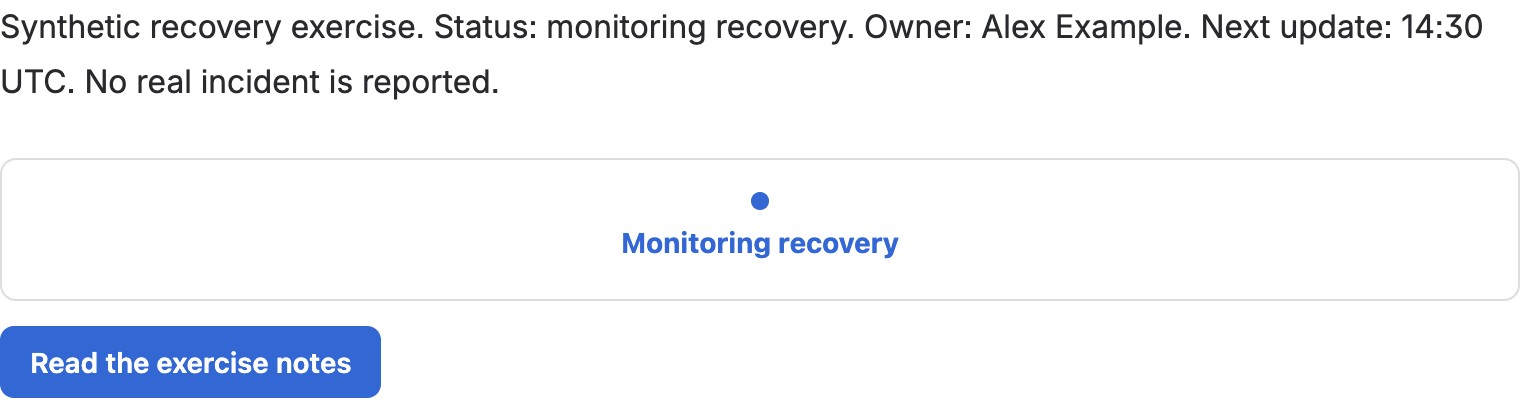
A finished Project status section with an additional native-text summary, on the development site. It is a synthetic exercise, not a real incident or the complete Incident management template. Essential status remains visible after closing the optional alert dialog.
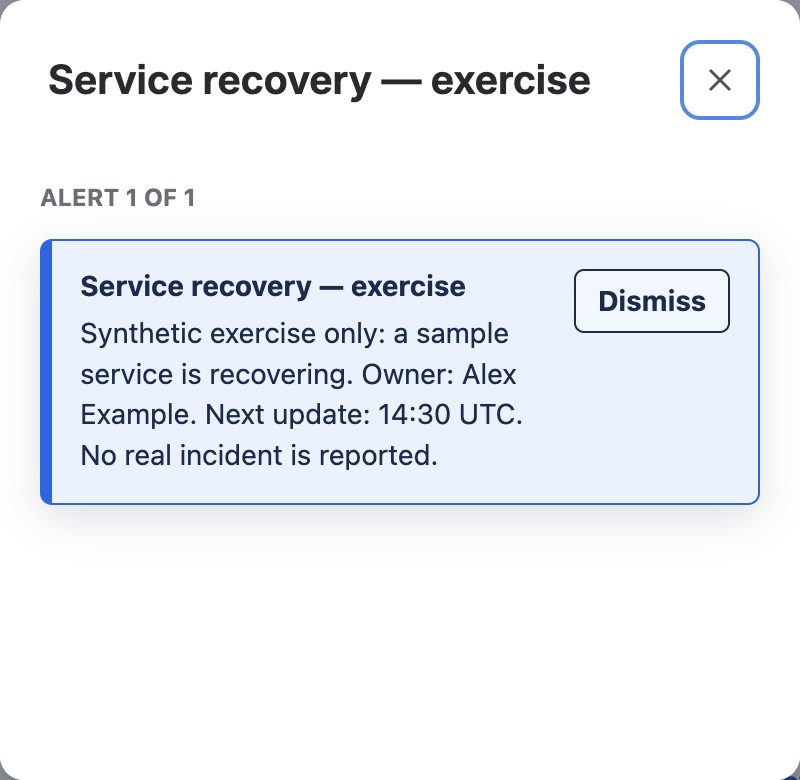
The example’s Alert is configured to appear in a reader dialog. Do not rely on a dismissible dialog alone for information every responder must see.
Start with the shipped Incident management template. Its sections include impact and status, timeline, response roles, communications, and follow-up. Project status or Announcement and actions Section Patterns can make a current update prominent; Owners and responsibilities can link to response contacts. Better Pages is a page-authoring tool here, not an incident-alerting or automatic status-sync system.
- Create a private draft from Incident management in Better Pages home. Choose a space appropriate for the incident audience.
- Fill in the verified impact, time of the update, incident owner, and where the authoritative live response happens. Do not publish speculative status.
- In Composer, preview a status or action section with links to the runbook and communications channel. Review before writing.
- Save and reopen the draft. Publish once the audience and information are correct; assign someone to keep the status and links current.
Finished-page check: Put impact and next update in text, not color alone. Test the playbook and contact links with keyboard and on a narrow screen. For multiple-page housekeeping, see Space Manager, which previews permission-checked operations rather than automating response.