Create, Apply, and Recreate
Create, Apply, and Recreate are the three explicit user journeys. Each presents a preview before Jira is changed.
Choose the right workflow
Section titled “Choose the right workflow”| Your goal | Use |
|---|---|
| Start a new governed process from a saved template | Create |
| Standardize fields or add follow-up work to an existing issue | Apply |
| Reproduce useful live work once without saving a governed template | Recreate |
Use Native Jira Create Prefill when you specifically need values inside Jira’s standard Create dialog. Use JSM customer portal templates or Workflow Create only when the action should happen from those automatic entry points.
Create new work from a template
Section titled “Create new work from a template”Use Use template → Create new when the process should begin with a new root issue.
Before you begin
Section titled “Before you begin”You need permission to create the selected root and child work in the target Jira project.
- Choose a template from the library.
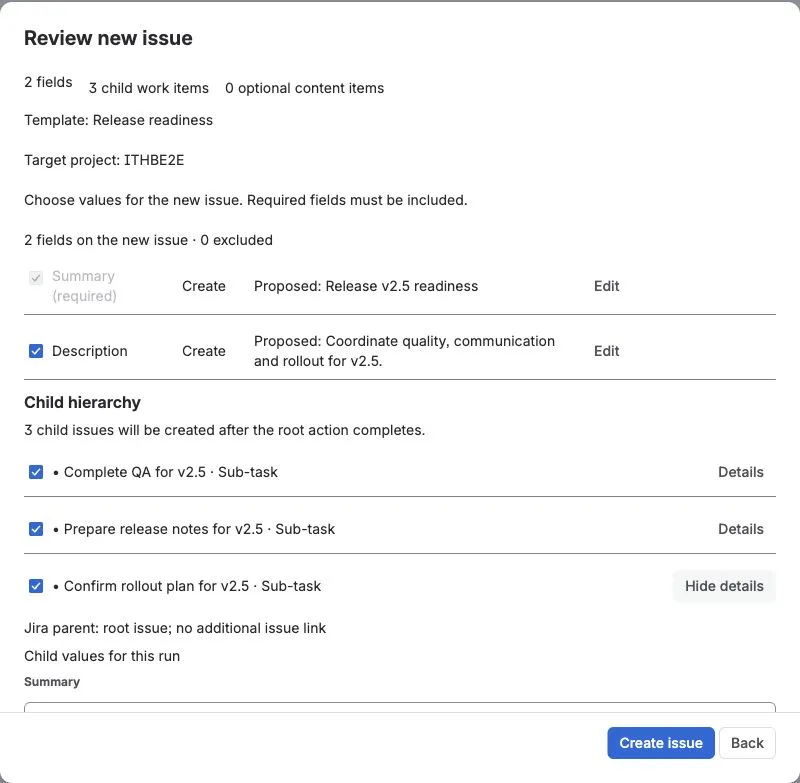
- Select Use template, keep Create new selected, and answer its runtime inputs.
- Select Preview new issue.
- Review and adjust the root values.
- Select the child work needed for this run.
- Open Details on child work to confirm its Jira parent and any additional issue-link direction.
- Select Create issue.
Jira receives a normal root issue followed by the selected hierarchy. Parent work is created before its children. The run keeps an immutable plan, so retry can skip children and links that already succeeded.
Verify the result
Section titled “Verify the result”Open the new root and confirm the selected child hierarchy matches Preview. Template details should show the template revision, run ID, status, and child outcomes.
Apply a template to an existing issue
Section titled “Apply a template to an existing issue”Use Apply template when the root already exists but needs standard fields or follow-up work.
- Open the issue and choose Apply template.
- Select an available template.
- Answer any runtime inputs and select Preview changes.
- Compare Current and Proposed values.
- Review the decision beside each field: Keep, Fill, Replace, or Skip.
- Select only the root fields and child work you want.
- Include configured comments or attachments only when needed.
- Select Apply changes.
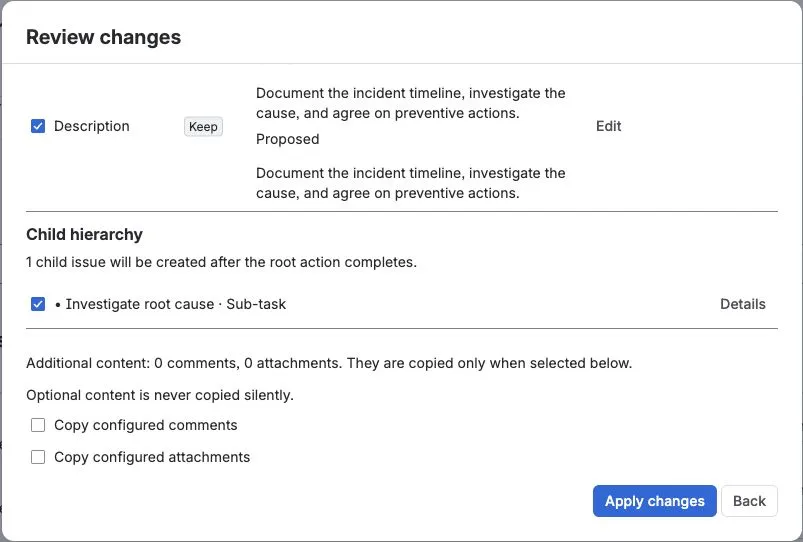
This pictured state is a second preview after an earlier Apply completed. No second Apply was submitted.
The default Only fill empty fields rule preserves a populated Jira field. Every selected overwrite is visible before the final action.
Verify the result
Section titled “Verify the result”Reopen the root issue and confirm skipped/current values were preserved. Template details records the Apply run and any selected child work.
Recreate live work once
Section titled “Recreate live work once”Use Recreate issue and selected work when useful live Jira work should be copied without adding a governed template to the library.
- Open the source issue and choose Recreate issue and selected work.
- Choose the destination project and issue type.
- Select the supported root fields, nested child work, and links to reproduce.
- Review the one-time creation plan.
- Confirm the operation.
Recreate preserves selected parent relationships and keeps one copy when the same issue is both a child and linked to the source root. Before Jira is changed, the app validates compatible destination hierarchy levels. The resulting issue is marked Recreated once in its provenance.
Understand the result
Section titled “Understand the result”The Template details issue panel shows:
- Operation type, template name, and template revision.
- Root and source issue.
- Durable run ID and current status.
- One outcome for each child node.
- The latest actionable error for a partial run.
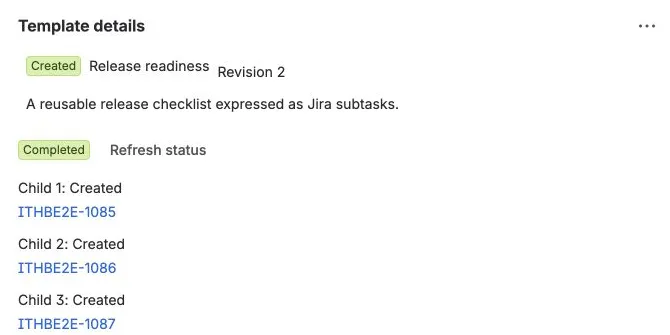
The pictured run is a Create example. Apply, Recreate, Portal, and Workflow origins appear for their corresponding runs.
Retry is available only for failed or partial work. Completed nodes are not replayed.
Troubleshooting
Section titled “Troubleshooting”A field is not changed
Section titled “A field is not changed”Check the preview decision first. Keep and Skip intentionally preserve the current value. If a selected field is reported as unavailable, Jira may have removed it from the destination project/work-type context.
Preview says the hierarchy is incompatible
Section titled “Preview says the hierarchy is incompatible”Confirm the selected destination work types have compatible Jira hierarchy levels. The app stops before mutation rather than guessing a parent mapping.
A hierarchy finishes partially
Section titled “A hierarchy finishes partially”Open Template details, fix the reported Jira permission, field, work-type, or link problem, then retry the same run. Do not start another Create or Apply just to replay completed children.
For additional symptoms, see Troubleshooting and Support.