Create and edit canvas diagrams
Canvas diagrams let you work directly with shapes, text, branches, or process elements. This guide applies to the published Forge app, Cloud version 3.0.0.
Use Choose the right diagram macro if you have not yet selected an editor.
Save and publish any canvas diagram
Section titled “Save and publish any canvas diagram”- Edit a Confluence page.
- Insert Excalidraw Diagram, Mind Map, BPMN Diagram, or DrawIO Diagram (Powered by draw.io). To change an existing diagram, select its macro and choose Edit.
- Build the diagram and review the complete result in the editor.
- Choose Save. In DrawIO, choose Save & Exit.
- Wait for the editor to return to Confluence.
- Choose Publish for a new page or Update for an existing page.
- Reload the published page and confirm that the complete diagram is visible.
Saving in the diagram editor updates the page draft. Readers do not see the change until you publish or update the Confluence page.
Sketch with Excalidraw
Section titled “Sketch with Excalidraw”Use Excalidraw Diagram for whiteboards, architecture sketches, UI wireframes, and informal diagrams.
- Select a shape tool, draw the shape, then type to label it.
- Use arrows to show direction or relationships.
- Double-click existing text to edit it.
- Use Undo and Redo to review changes before saving.
- Use View mode to inspect the drawing without editing it.
For a complete first example, follow Create your first Excalidraw drawing.
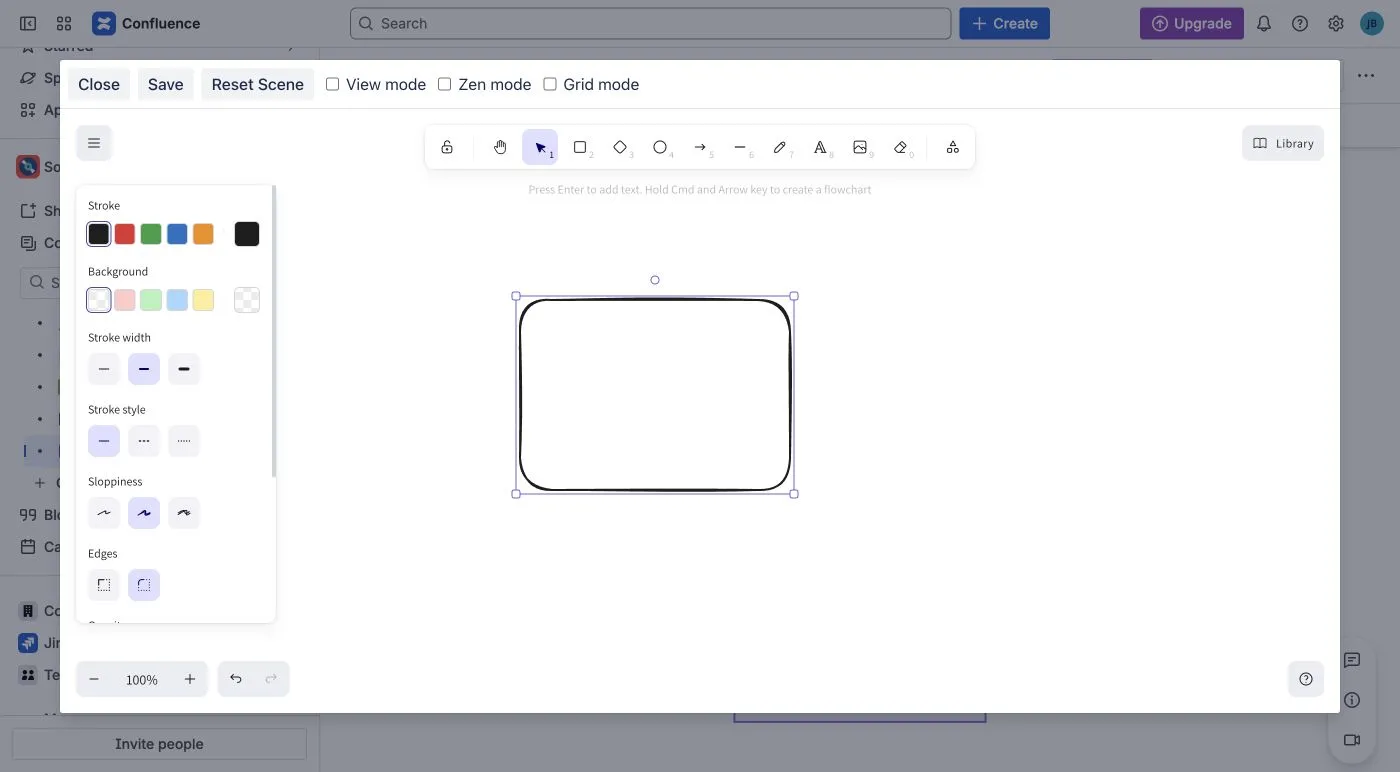
Select an element to change its stroke, background, and other drawing styles.
Navigate and reset the Excalidraw canvas
Section titled “Navigate and reset the Excalidraw canvas”- Use Zoom in, Zoom out, and Reset zoom to navigate the canvas.
- Turn on Grid mode to display a drawing grid. The grid is not part of the published diagram.
- Turn on View mode to inspect the drawing without editing it.
- Turn on Zen mode to reduce surrounding controls while you work.
Reset Scene restores the drawing loaded when you opened the editor and removes your current unsaved changes. It does not restore an older Confluence page version. Choose Close instead of Save when you want to leave without applying current edits.
Fonts may finish loading shortly after the editor opens. Wait until the intended font is visible before reviewing or saving the drawing. If Save reports that a required font has not loaded, keep the editor open and retry after it loads.
Reuse shapes with Personal Library
Section titled “Reuse shapes with Personal Library”- Select the shapes and text you want to reuse.
- Open Library and choose the + thumbnail to add the selection.
- Select a saved item’s thumbnail to insert it into the current drawing.
- Move the inserted content to the intended position, then save the diagram and update the Confluence page.
Adding a library item does not publish or change the page. Library items are stored separately in this browser and are not a shared team library or a cross-browser backup.
To download a library copy, open the three-dot menu beside Personal Library,
choose Save to…, and finish the browser’s Save dialog. To import a library,
choose Open in the same menu and select an .excalidrawlib file. Do not use
the canvas menu’s Open, which loads a drawing instead.
Import adds library items alongside existing items; it does not replace the page’s drawing. Keep the original export as a backup. If the editor reports that library changes could not be saved, keep it open and use Personal Library → Save to… before reloading or closing the editor.
Build a Mind Map
Section titled “Build a Mind Map”Use Mind Map when the result should show a topic hierarchy.
- Double-click the root topic and enter a useful name.
- Select a topic and press Tab to add a child.
- Rename the child, then continue adding branches.
- Use − and + on a branch to collapse or expand its descendants.
- Save, publish the page, then reopen the macro to confirm that the topics are still editable.
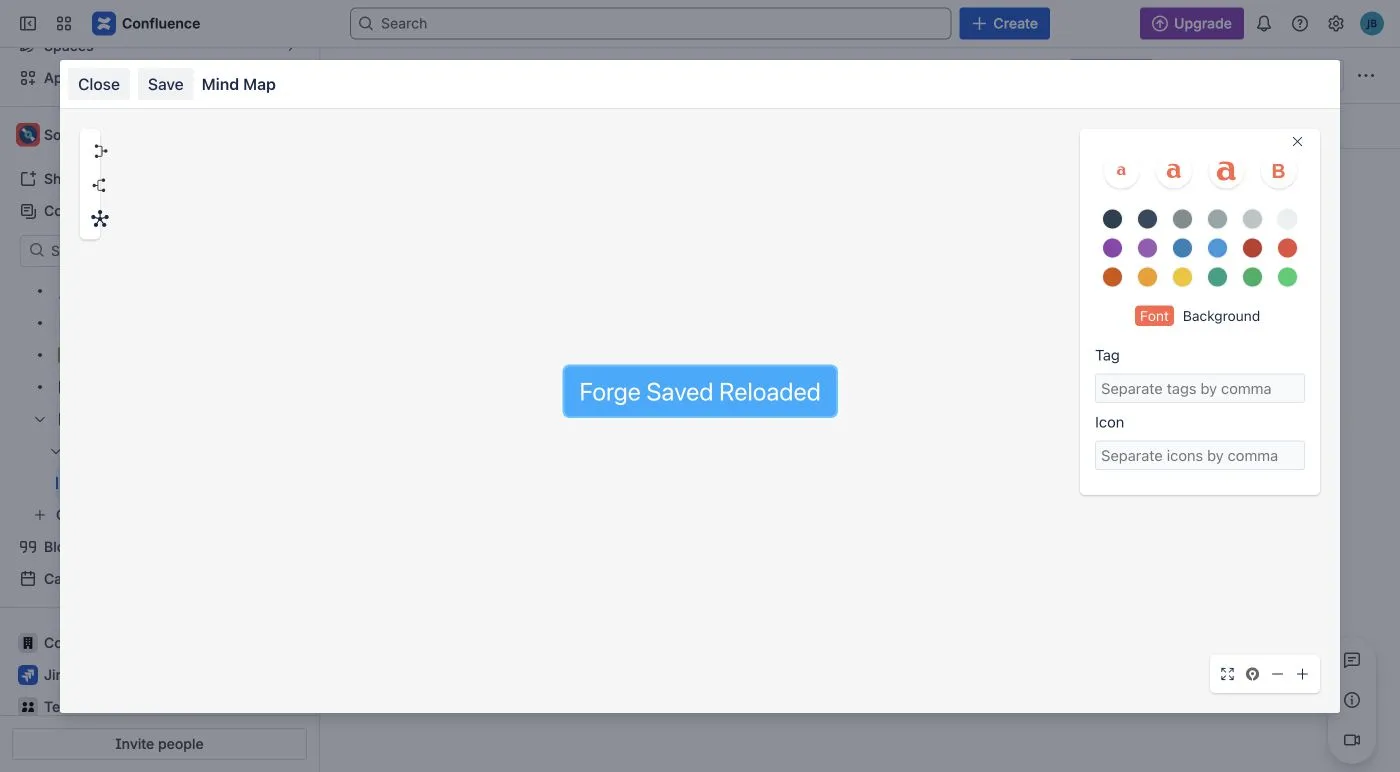
Select a topic to edit its text, color, tags, and other node properties.
Choose Close without Save to leave the stored map unchanged. A changed topic is not published merely because it appears on the editing canvas.
Model a process with BPMN
Section titled “Model a process with BPMN”Use BPMN Diagram when BPMN notation is meaningful to the audience.
- Select the start event.
- Use its context controls to append a task.
- Label the task, then append an end event.
- Check that the sequence flows connect Start → Task → End.
- Save and publish the page.
Token Simulation can help you walk through the modeled path. It is an editing aid and does not execute business actions in Confluence.
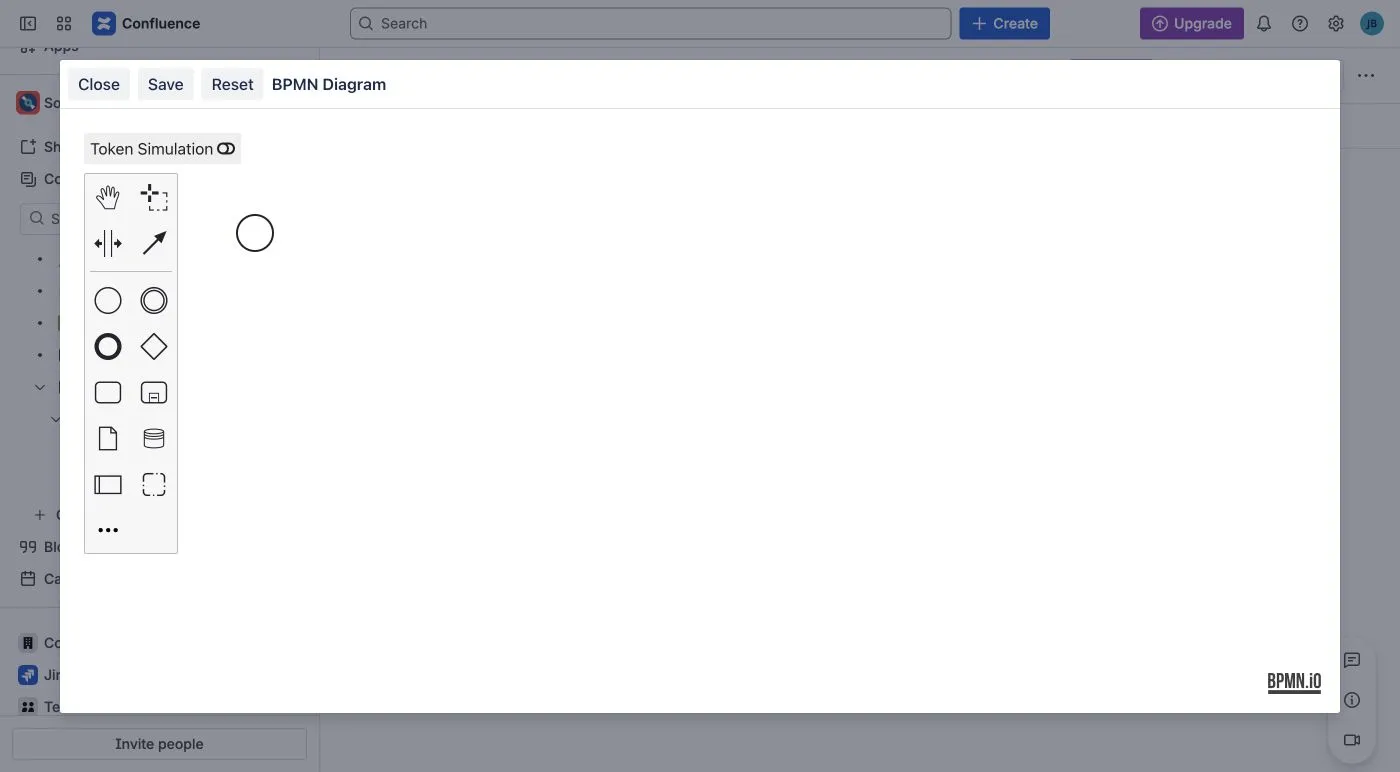
Use the palette and an element’s context controls to build a connected process.
Simulate a BPMN process
Section titled “Simulate a BPMN process”- Turn on Token Simulation.
- Choose Slow, Normal, or Fast using the speed controls at the bottom of the canvas.
- Trigger the start event and open Simulation Log to follow the process.
- Use Play/Pause Simulation to pause or resume a moving token.
- After the token reaches the end and displays Finished, use Reset Simulation to clear the run.
Simulation is an editing aid, not a workflow engine. Turn it off before reviewing the normal diagram appearance. Save also turns simulation off before creating the saved preview, so temporary simulation colors are not saved as the diagram’s colors.
To change a task’s color, select it, choose Set Color, then choose a swatch. To add a standalone task, choose Create Task from the left palette and place it on the canvas; adding a task does not connect it automatically.
Build a structured diagram with DrawIO
Section titled “Build a structured diagram with DrawIO”Use DrawIO Diagram (Powered by draw.io) when you need draw.io shape libraries and its structured canvas.
- Drag a shape from a library onto the canvas.
- Add a label and connect any related shapes.
- Choose Save & Exit and wait to return to Confluence.
- Publish or update the page.
To leave without applying the current editor changes, choose Exit instead of Save & Exit. If you changed the diagram, draw.io asks whether to discard those changes. Confirm only when you no longer need the unsaved edits.
Saving requires both reusable diagram XML and a preview image. A save error is not confirmation that the page draft was updated. Keep the editor open and retry instead of publishing the page after a failed save.
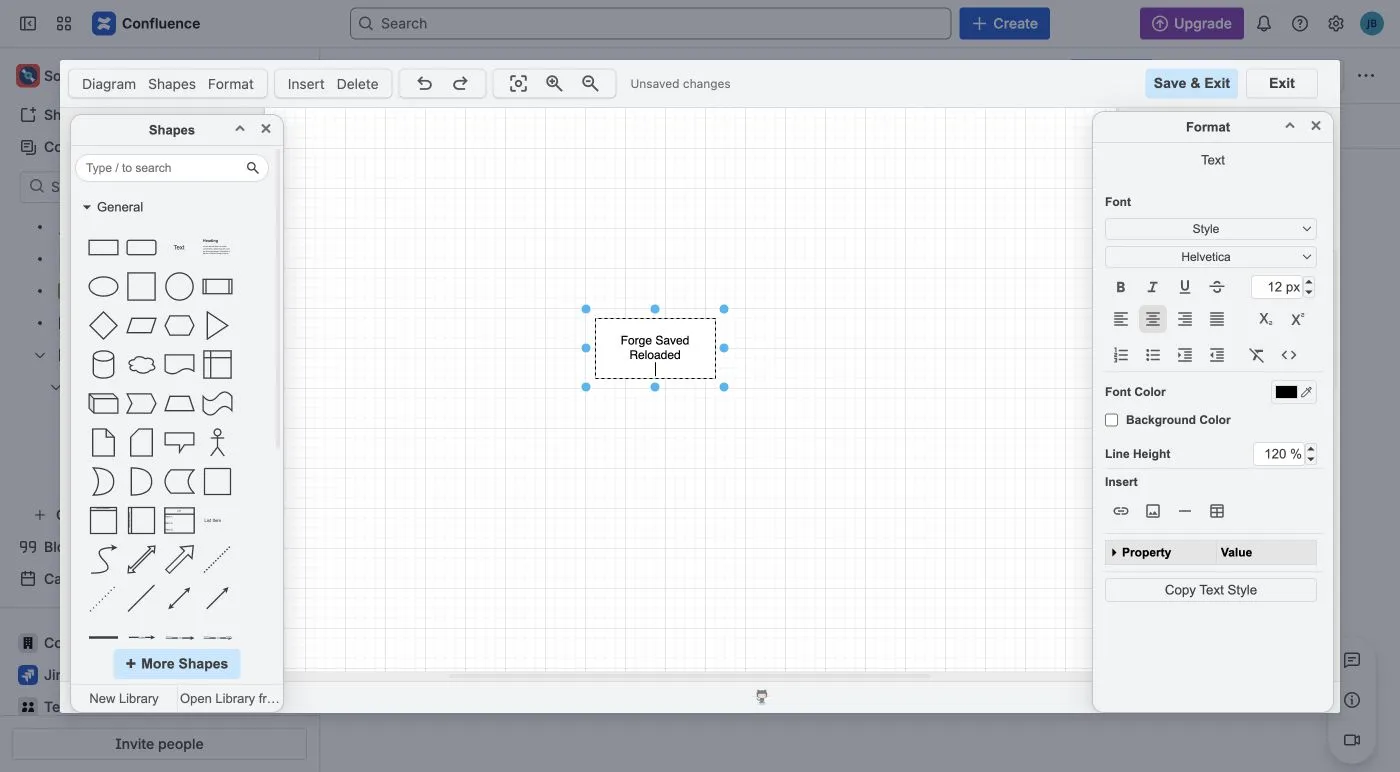
DrawIO keeps its shape libraries on the left, formatting controls on the right, and Save & Exit in the top toolbar.