Create equation references and lists
A referenceable formula has two independent values:
- Display label is the optional reader-friendly name shown in equation pickers and lists.
- Reference key is the identifier used by reference macros. It is not shown as a caption beside the formula.
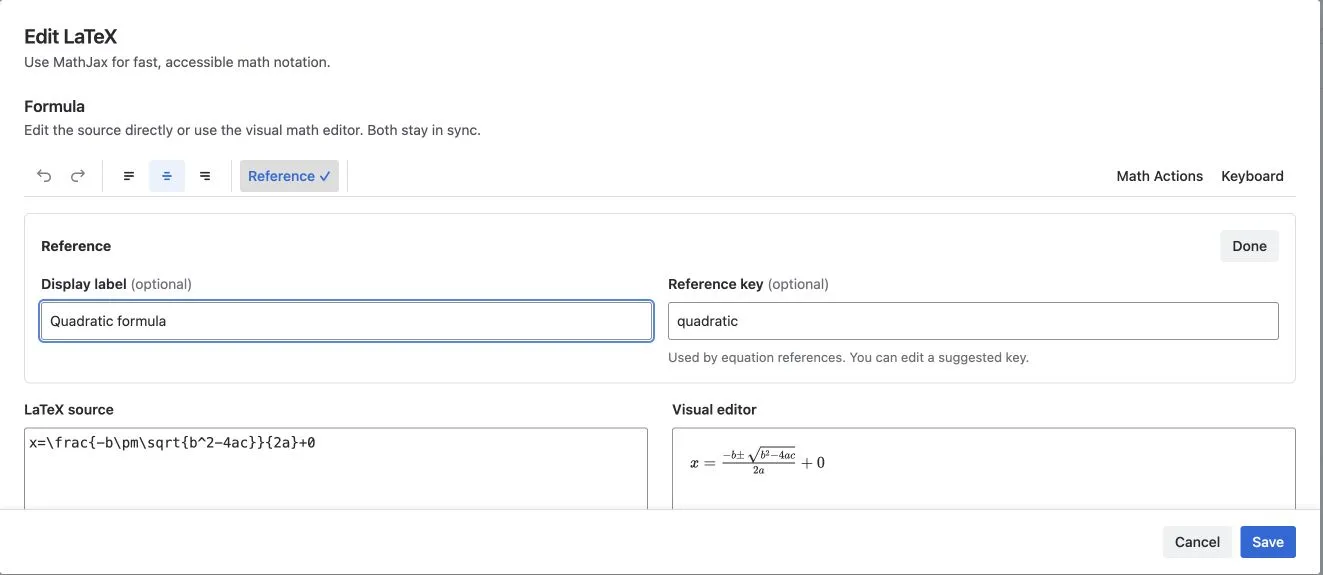
Before you begin, make sure you can edit and publish the source page. Cross-page references also require permission to view the target page. The picker reads published content, so publish a new or changed target formula before selecting it elsewhere.
Make a formula referenceable
Section titled “Make a formula referenceable”- Open a MathJax formula and select Reference in the toolbar. For an Advanced LaTeX formula, use its Options section.
- In MathJax, enter a Display label, such as
Energy equation, and enter or review the Reference key, such asenergy-equation. - In Advanced LaTeX, the equivalent fields are named Display name and Reference name.
- Select Done if shown, then Save.
- Publish or update the Confluence page.
For a new MathJax formula, the app can suggest an editable key from the display label. After a key exists, changing the display label does not silently change it or break existing links.
Keep Reference keys unique within a page. If duplicate or normalized-equivalent keys exist, numbering and navigation use the first matching formula.
Link to an equation
Section titled “Link to an equation”- Edit the page where the link should appear.
- Insert LaTeX reference.
- Choose This page or Another page.
- For another page, search for and select the Confluence page.
- Choose the target from Equation. Each option shows the equation number, display label when available, and Reference key.
- Select Save, then publish the page.
Cross-page references save the selected page ID, so the link continues to target that page after a title change or move. Advanced: enter a legacy key is a fallback for existing configurations that cannot be selected from published content; it is not the normal setup flow.
Selecting a reference on a published page moves to the matching formula. References in the Confluence editor are previews and do not navigate.
You have succeeded when the published reference shows an equation number and selecting it moves the reader to the chosen formula.
Create an equation list
Section titled “Create an equation list”- Insert LaTeX equation list.
- Choose This page or Another page. Search for the page if needed.
- Enable Include child pages to include published descendant pages.
- Keep Show names enabled to show each display label, falling back to the Reference key.
- Select Save, then publish the page.
The list preserves each source page’s equation numbering; it does not create one new sequence across several pages. Cross-page entries also identify their source page.
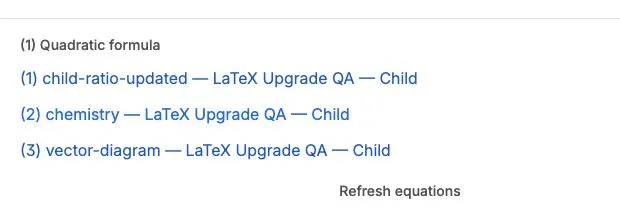
This example combines a same-page reference with an equation list that identifies equations from the current page and a child page. Select an equation number or list entry to move to that formula.
You have succeeded when each visible list entry shows the source equation’s number and selecting it moves to that equation. Readers only see entries from pages they can access.
Refresh after changes
Section titled “Refresh after changes”The picker and list read published content. After adding, removing, reordering, or renaming a referenceable formula:
- Publish the source page.
- Reload the page containing the reference or select Refresh equations on the equation list.
An already open page does not subscribe to changes in another browser tab. Historical page versions show formula images but do not provide historical reference numbers, navigation, or reconstructed equation lists.
Access rules
Section titled “Access rules”References and lists use the current reader’s Confluence permissions. They do not reveal equations from a restricted page. Readers with different access can therefore see different list results.