Alert
Use Better Pages Alert to emphasize information readers should notice. It supports two presentations: a message panel inside the page flow and a page alert shown when the page loads.
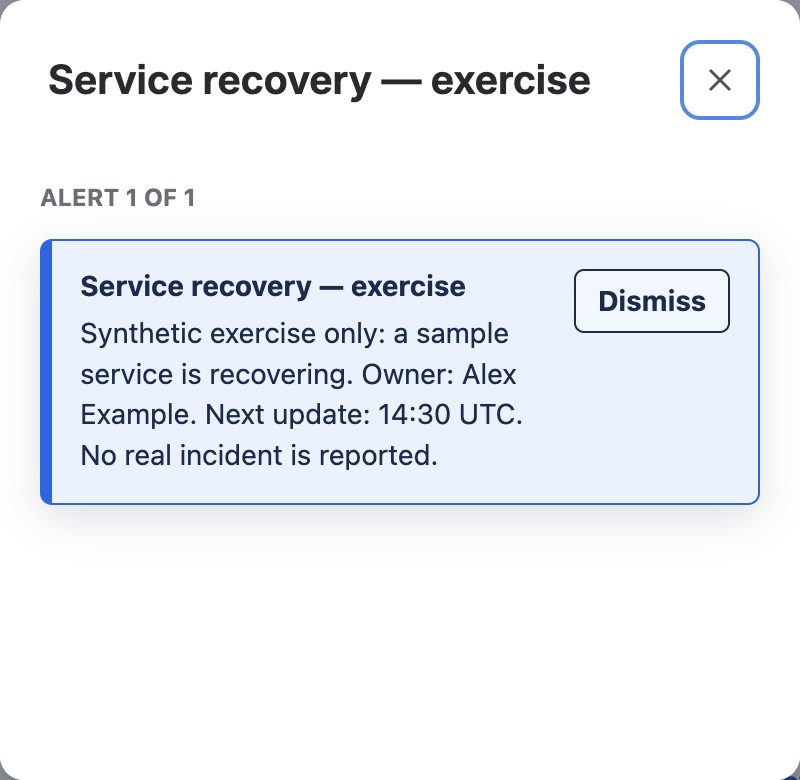
Release 13 example: this is a dismissible page alert, not an inline message panel. The fictional exercise status also appears in the page body so readers can find it after dismissing the alert.
Choose the presentation
Section titled “Choose the presentation”| Presentation | Use it for |
|---|---|
| Message panel | Context, guidance, warnings, or status that should remain visible in the page |
| Page alert | A time-sensitive notice readers should see when the page opens |
Use page alerts sparingly. A reader should not have to dismiss a modal for routine information that belongs in the document.
Add an Alert
Section titled “Add an Alert”- Edit a page and insert Better Pages Alert.
- Choose Message panel or Page alert.
- Enter a short title and a focused message.
- Select a preset: Info, Success, Warning, Error, Custom neutral, Work in progress, Sensitive, or Outdated.
- Configure the presentation-specific options.
- Review the preview, save the macro, and publish the page.
Configure a Message panel
Section titled “Configure a Message panel”A Message panel appears exactly where the macro is placed. Enable Allow readers to dismiss it when the message is useful initially but should not occupy the page for the rest of the current view.
Dismissal is temporary. Reloading the page shows the panel again.
Configure a Page alert
Section titled “Configure a Page alert”Choose one of three layouts:
- Image alert combines artwork, title, and message.
- Simple alert creates a compact text-first notice.
- Compact icon alert uses a small preset icon and minimal space.
Page alerts also support background and text colors. For an Image alert, choose built-in artwork, a Brand Kit image, an upload, a page attachment, or a licensed stock image. You can add alternative text, choose the image fit and height, and crop or reposition its focal point.
Uploaded images support PNG, JPEG, GIF, ICO, BMP, and WebP files up to 15 MB.
Dismissal behavior
Section titled “Dismissal behavior”Every Page alert includes a dismiss action. If a page contains several Page alerts, Better Pages shows them in one queue rather than opening several dialogs at once.
Enable Let signed-in readers permanently dismiss this version when a reader should not see the same notice again after reloading. The dismissal applies to that signed-in reader, page, macro, and exact alert content. Editing and republishing the alert creates a new version that can appear again.
Anonymous or unidentifiable readers receive view-only dismissal, which resets when the page reloads.
Example
Section titled “Example”For a planned maintenance window:
- Presentation: Page alert
- Layout: Simple alert
- Preset: Warning
- Title:
Scheduled maintenance - Message:
Editing will be unavailable on Saturday from 20:00 to 21:00 UTC. - Permanent dismissal: Off, so the reminder returns until the page is updated
Good practice
Section titled “Good practice”- Make the title meaningful: Action required by Friday is clearer than Important.
- Keep the message short and include the expected action or outcome.
- Use Error, Warning, and Sensitive presets only for information that warrants that level of attention.
- Provide useful alternative text for informative images. Decorative artwork should not repeat the title.
- Publish the page and verify the complete Page alert queue, not only the editor preview.