Advanced Expand
Use Better Pages Advanced Expand for optional detail that readers can reveal without leaving the page. Its body supports rich Confluence content.
Add an Advanced Expand
Section titled “Add an Advanced Expand”- Insert Better Pages Advanced Expand.
- Enter a descriptive title and choose its heading level.
- Choose Filled, Card, or Underline styling and set the accent colors.
- Select a built-in, custom, or Brand Kit icon.
- Decide whether the section starts open.
- Save, add content to the macro body, and publish.
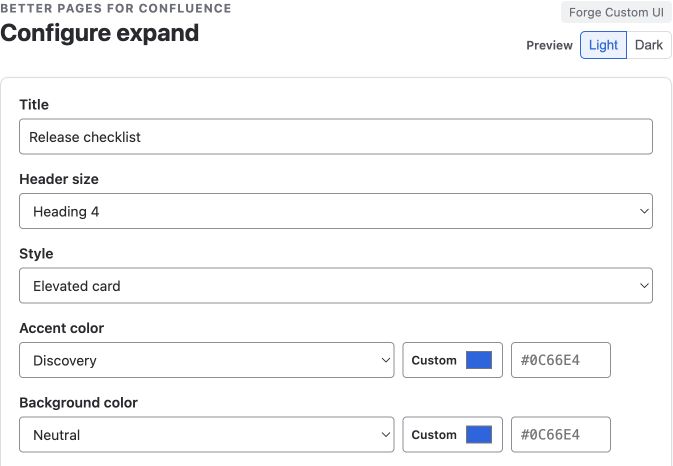
Choose the title, heading size, and appearance before adding the supporting content in the Confluence editor.
Reader interaction
Section titled “Reader interaction”Readers activate the heading with a pointer, Enter, or Space. The expanded state is announced to assistive technology. The content opens in place, so the reader keeps their position on the page.


The same saved section before and after activation. Opening it reveals the authored content in place.
Example
Section titled “Example”On an onboarding page, use the title VPN setup for remote access and place the
detailed steps and troubleshooting notes inside. Leave it closed by default if
only remote employees need it.
Good practice
Section titled “Good practice”- Write a title that tells readers exactly what will open.
- Keep critical warnings and mandatory steps outside a closed section.
- Match the heading level to the page outline.
- Do not nest several disclosure layers; use a child page for large topics.