Write and edit Markdown
Create an engineering note with a table and two formulas, then save and reopen its Markdown source. These steps apply to the Forge editor.
Before you begin
Section titled “Before you begin”The app needs an active license, and you need permission to edit the page. For a new page, you also need permission to create and publish it in the space. Use the Connect guide if you see the older check-icon editor.
1. Insert the macro
Section titled “1. Insert the macro”- Create a Confluence page or edit an existing page.
- Place the cursor where the macro belongs. Type
/to open the insertion menu, then choose View more to open Browse. - Search Markdown, select the Markdown macro and select Insert. On a development installation its name includes (Development); select the installation your administrator intends you to use.
The macro opens its Markdown editor. For an existing macro, edit the Confluence page, select the macro and choose Edit from its floating toolbar.
2. Write and preview
Section titled “2. Write and preview”Paste this example into Markdown source:
## Engineering notes
Keep the **source** and the formatted result together.
| Quantity | Value || --- | --- || Mass | 2 kg || Acceleration | 3 m/s² |
The force is $F = ma$.
$$F = 2 \times 3 = 6\,\mathrm{N}$$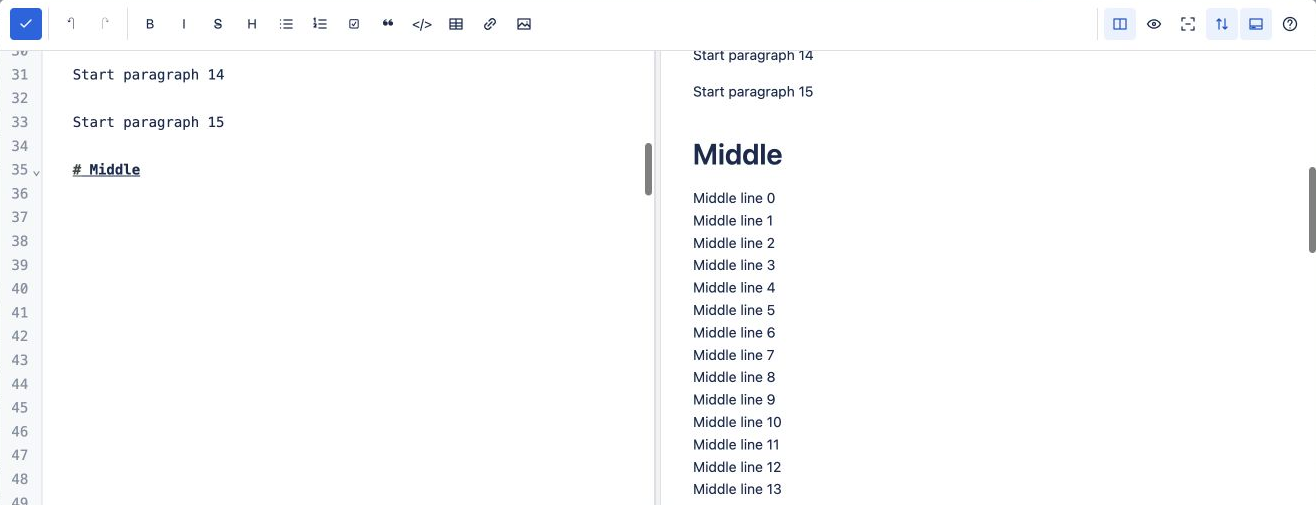
The two panes follow the same heading in this longer Markdown example. Select the image to open it at full size.
Use the formatting toolbar for headings, emphasis, lists, quotes, code, tables, links and images. Select text before applying a format. Open Markdown help (the question mark) for syntax examples, then expand Keyboard shortcuts to see the available shortcuts.
| Control | Use it to… |
|---|---|
| Side preview | Show source and formatted output together, or return to source alone |
| Reader mode | Review formatted output. Select Edit file to restore the previous layout |
| Focus mode | Dim source lines outside the current editing line |
| Scroll sync | Keep source and preview aligned by Markdown heading as you scroll |
| Pane divider | Drag to resize the panes; use arrow keys when the divider has focus |
Use $...$ for inline mathematics and separate $$ lines for a displayed
formula. Compatibility and exports explains
images, sanitization and output differences.
3. Save the macro and publish the page
Section titled “3. Save the macro and publish the page”- Select the checkmark (Save and close). This saves the macro configuration to the Confluence draft and closes the macro editor.
- In Confluence, Publish a new page or Update an existing page to share the change. A new page may show Publish… followed by a confirmation.
- Reload the published page. Check the table, the inline
F = ma, and the displayedF = 2 × 3 = 6 N.
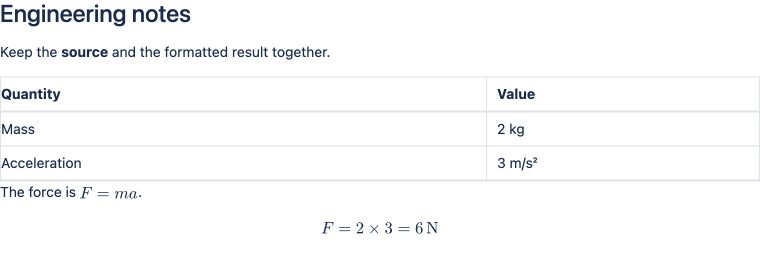
The engineering notes example after publishing and reloading the page.
Edit the page and reopen the macro to check that its Markdown source remains available. Each macro has its own source; edit the intended macro when a page contains several.
Keyboard save: ⌘/Ctrl+Enter and Escape save and close the editor. Escape is not a discard action while editing source; within a helper dialog it closes that dialog first.
Recover unfinished editing
Section titled “Recover unfinished editing”Draft saved in this browser means the app has kept a local recovery draft. If you leave the outer macro editor without saving, reopening that same macro in the same browser profile and account can show Recovered your unsaved draft. Review it before saving. A successful macro save clears that macro’s current local draft; it does not publish the Confluence page.
Recovery is unavailable when required identity information or browser storage is unavailable. It is not a cross-device backup and has no fixed expiry. See Privacy and data handling before relying on browser storage for sensitive content.