Create your first Excalidraw drawing
Create a small request-flow drawing, publish it, and reopen it for editing. This guide applies to the published Forge app, Cloud version 3.0.0.
Before you start
Section titled “Before you start”- The app must be installed with an active Marketplace license or trial.
- You need permission to edit and publish the target Confluence page.
Create and publish the drawing
Section titled “Create and publish the drawing”- Open a Confluence page and select Edit.
- Type
/Excalidraw, then choose Excalidraw Diagram. The diagram editor opens directly; there is no separate Open Editor step in Forge. - Draw two rectangles. Label the first Browser and the second Service.
- Connect Browser to Service with an arrow.
- Review the complete drawing, then select Save.
- Wait for the editor to return to Confluence. Select Publish for a new page, or Update for an existing page.
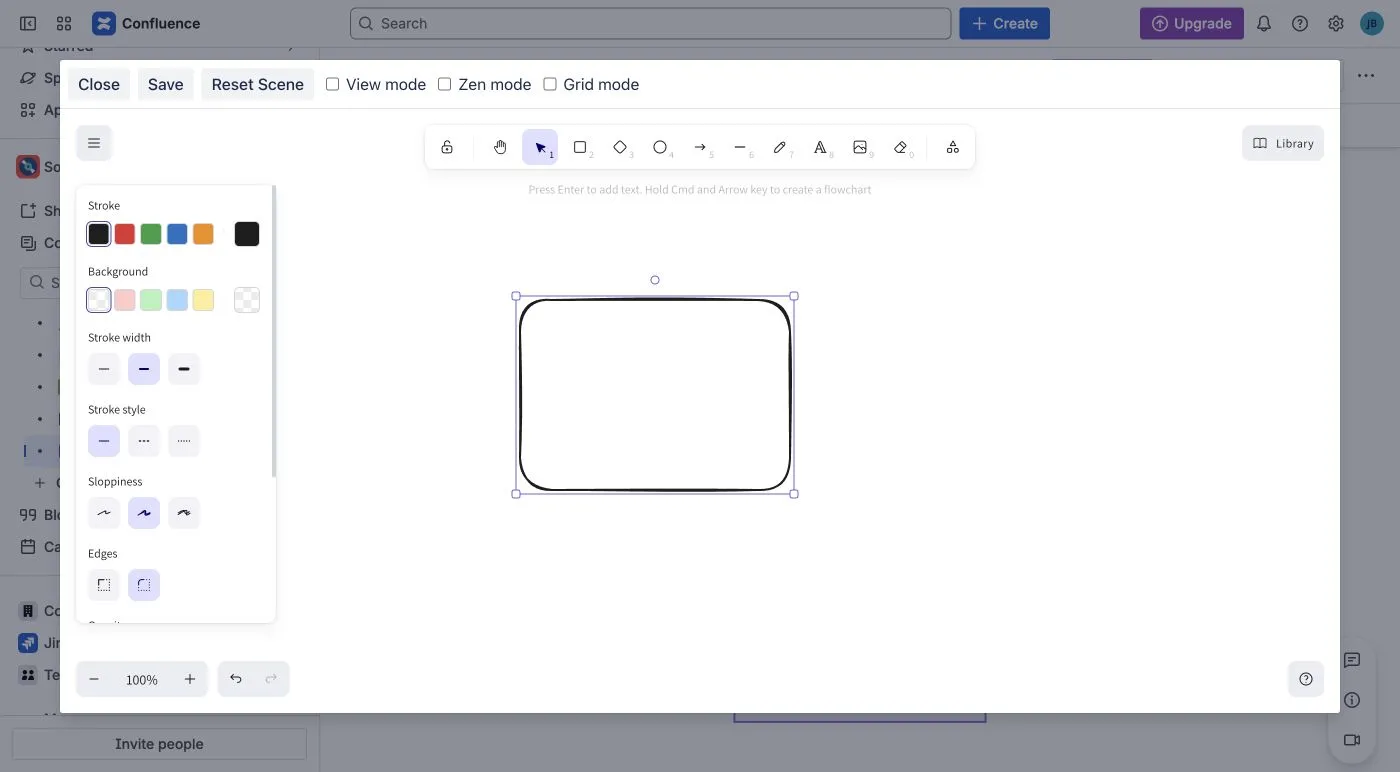
The Forge editor opens directly from the macro. Build and review the complete drawing before choosing Save.
You have succeeded when the published page shows the drawing instead of the macro editor or an empty placeholder. The two labels and connecting arrow should all be visible.
Understand the two save steps
Section titled “Understand the two save steps”- Save in the Excalidraw editor applies the drawing to the Confluence page draft.
- Publish or Update makes that draft visible to readers.
Wait for the diagram editor to close successfully before publishing the page. If it stays open or reports an error, keep your work in the editor and follow The editor closed but the published page did not change.
Edit the drawing later
Section titled “Edit the drawing later”- Edit the Confluence page.
- Select the drawing and choose Edit.
- Change the Service label to API service, then select Save.
- Wait for the editor to return to Confluence, then select Update.
- Reload the published page and confirm the label changed while both rectangles and their connecting arrow are still present.
Readers continue to see the previous published version until you select Publish or Update.
Next steps
Section titled “Next steps”- Choose the right diagram macro.
- Create and edit canvas diagrams.
- Create diagrams from text.
- Reuse shapes with Personal Library.
- Troubleshoot a diagram.
If your site still shows Open Editor and Save and Close, use the legacy Connect guide. If Save does not return you to the page, keep the editor open and follow The editor closed but the published page did not change.